


Designing Game Environments in Zimension
Learn how to create stunning 3D game environments in Zimension. Follow this step-by-step tutorial to sculpt terrain, create rivers, paint ground surfaces, distribute trees, and add final visual effect

Designing Game Environments: Create and Sculpt Your Own 3D Terrain in Zimension
Creating an engaging game environment starts with building a world that feels interesting to explore. From mountains and rivers to forests and open landscapes, terrain design plays an important role in shaping the overall experience of a game.
With Zimension, you can create and customize 3D environments using terrain sculpting, ground painting, water placement, and object distribution tools.
In this tutorial, we'll walk through the process of creating a natural-looking game environment, from shaping the terrain to adding trees, water, and final visual effects.
1. Select the Ground Tool
Start by opening your project in Zimension and navigating to the environment editor.
To begin creating your terrain, select the Ground option from the available tools.
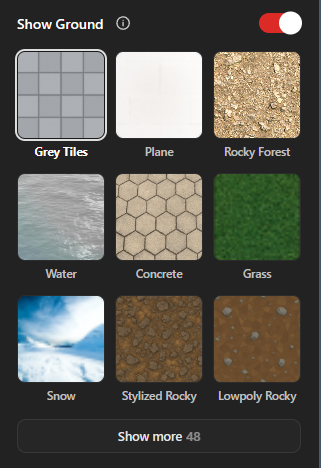
Once selected, you'll find several options that allow you to modify the terrain and customize its appearance.
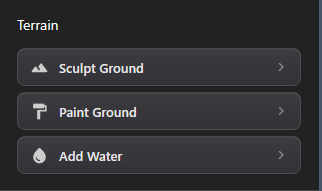
These tools provide the foundation for building different types of landscapes, whether you want to create flat terrain, uneven surfaces, rivers, or other natural features.
2. Explore the Terrain Sculpting Tools
Before modifying the terrain, familiarize yourself with the available sculpting options.
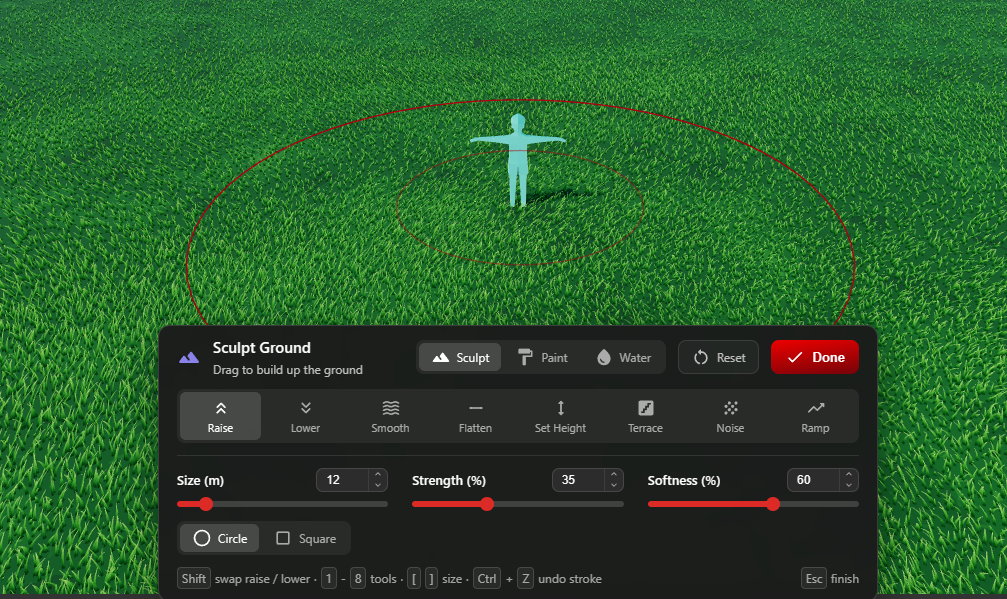
The sculpting tools allow you to change the shape and elevation of the ground directly within the editor.
You can use these tools to:
- Raise terrain to create hills and elevated areas.
- Lower terrain to form valleys and depressions.
- Shape the landscape according to your game design.
- Create different elevations for more interesting environments.
3. Raise and Lower the Terrain
Now it's time to start shaping your landscape.
Select the appropriate sculpting brush and apply it to the ground. You can gradually raise or lower specific areas to create natural variations in the terrain.
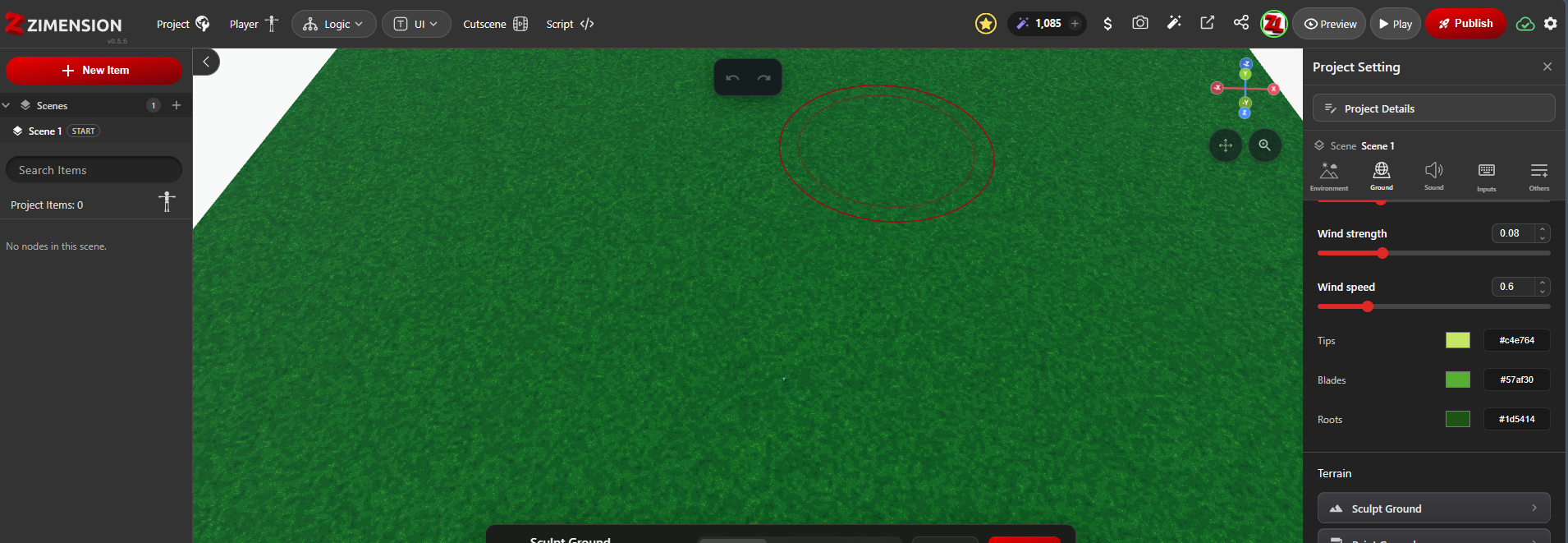
Use the brush carefully and experiment with different areas of the terrain. Gradual adjustments can help create smoother transitions between elevated and lowered surfaces.
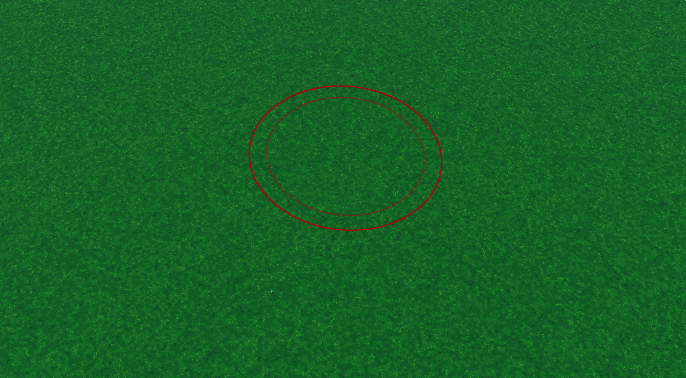
For example, lowering a section of the ground can create a channel that can later be filled with water to form a river.
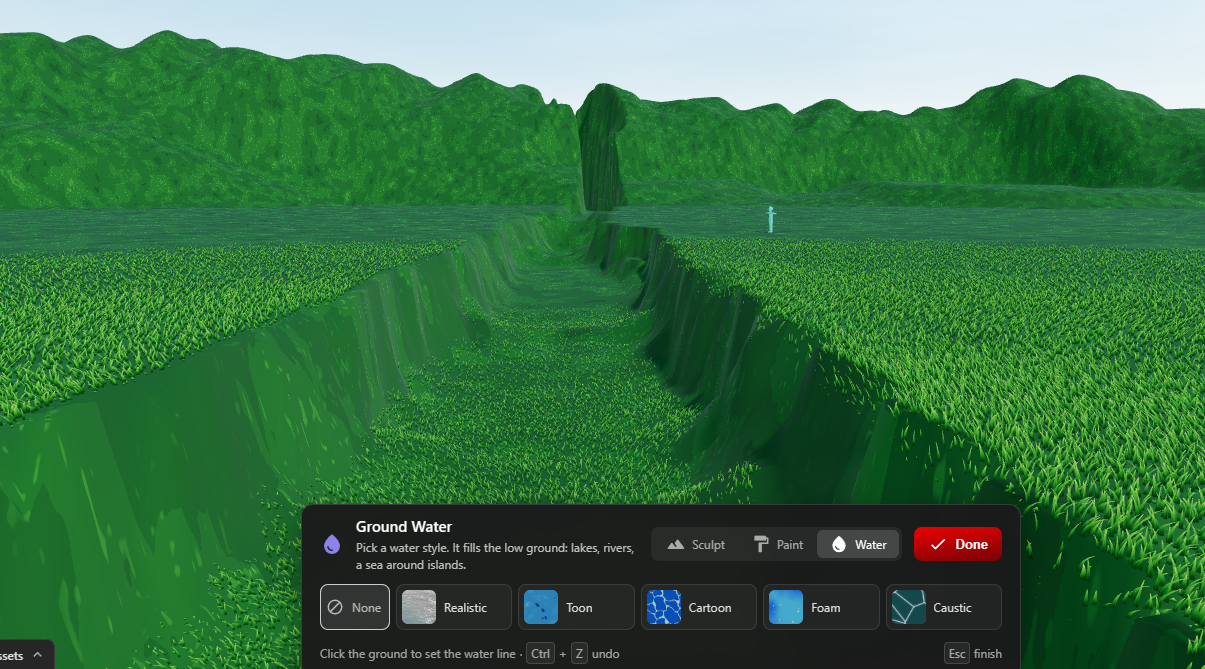
This technique is useful for creating rivers, small valleys, and other landscape features that make your environment more interesting.
4. Add Water to Your Environment
After creating the river channel, you can introduce water to your landscape.
Select the Ground Water option and configure the available settings according to your requirements. Once the values are set, select the water option to apply it to your environment.
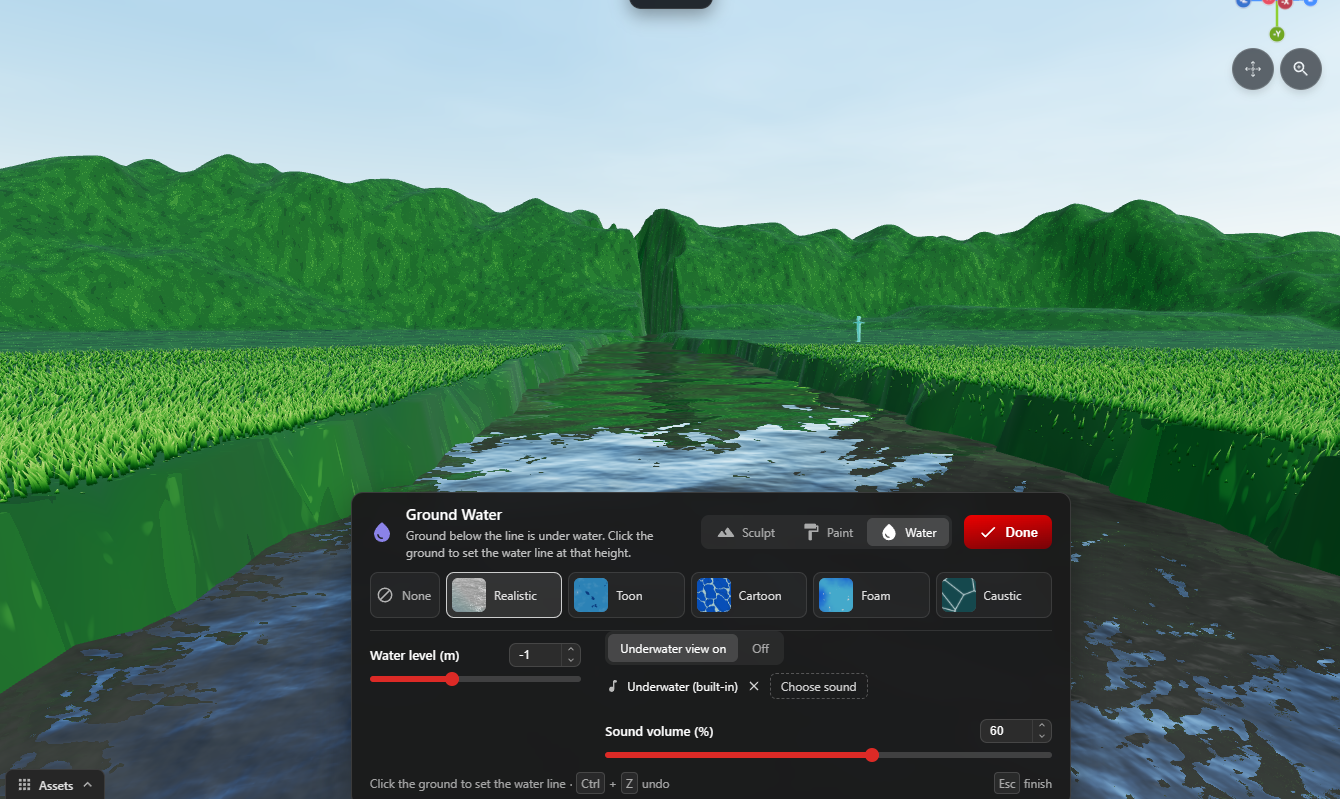
Position the water within the lowered terrain to create a river-like appearance.
Adjust the settings as needed to achieve the desired result. Water can add depth and visual interest to your environment, particularly when combined with surrounding terrain and vegetation.
5. Customize the Ground Using Paint Ground
Once the terrain has been shaped and water has been added, the next step is to customize the ground's appearance.
Select the Paint Ground option to apply different ground surfaces and textures.
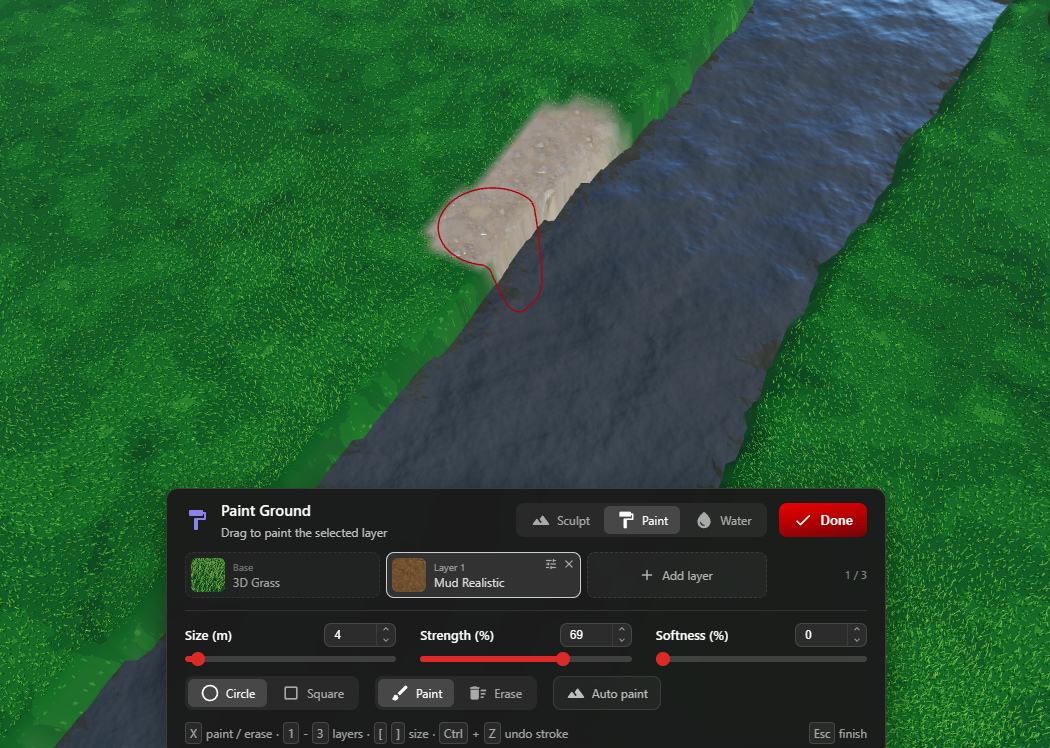
You can use this feature to create visual variations across your landscape.
For example, different ground surfaces can help distinguish grassy areas, pathways, and other sections of your environment.
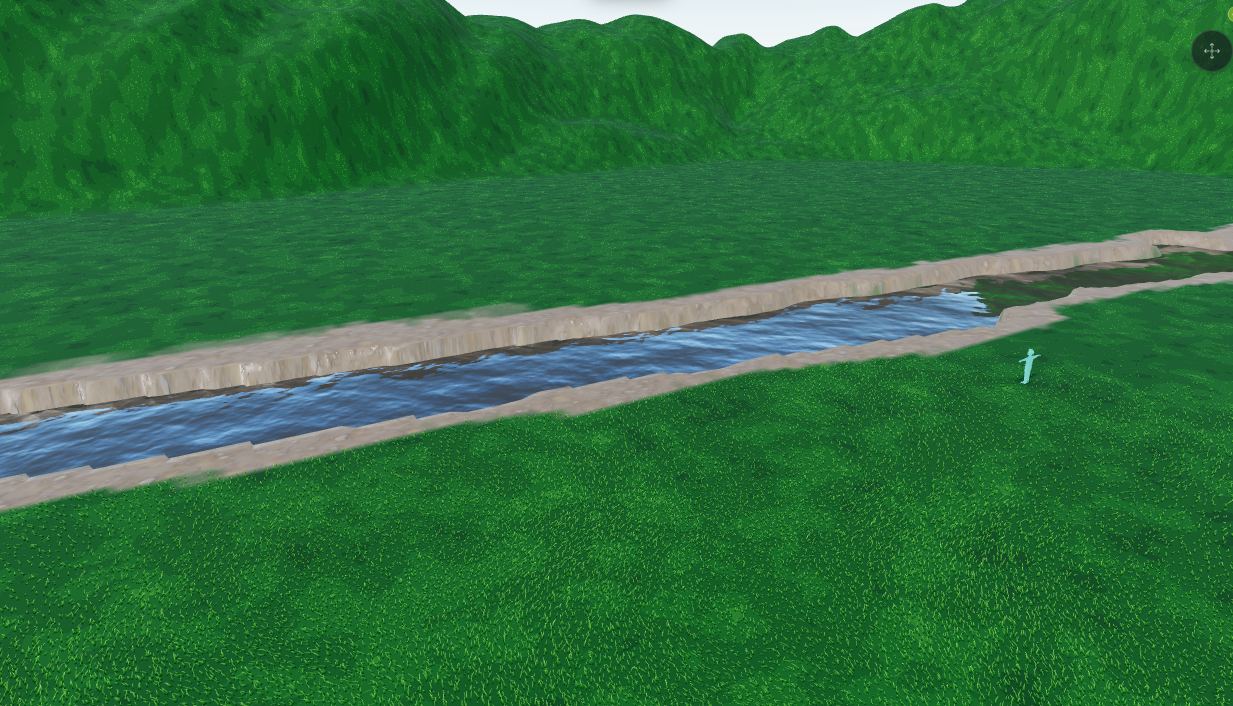
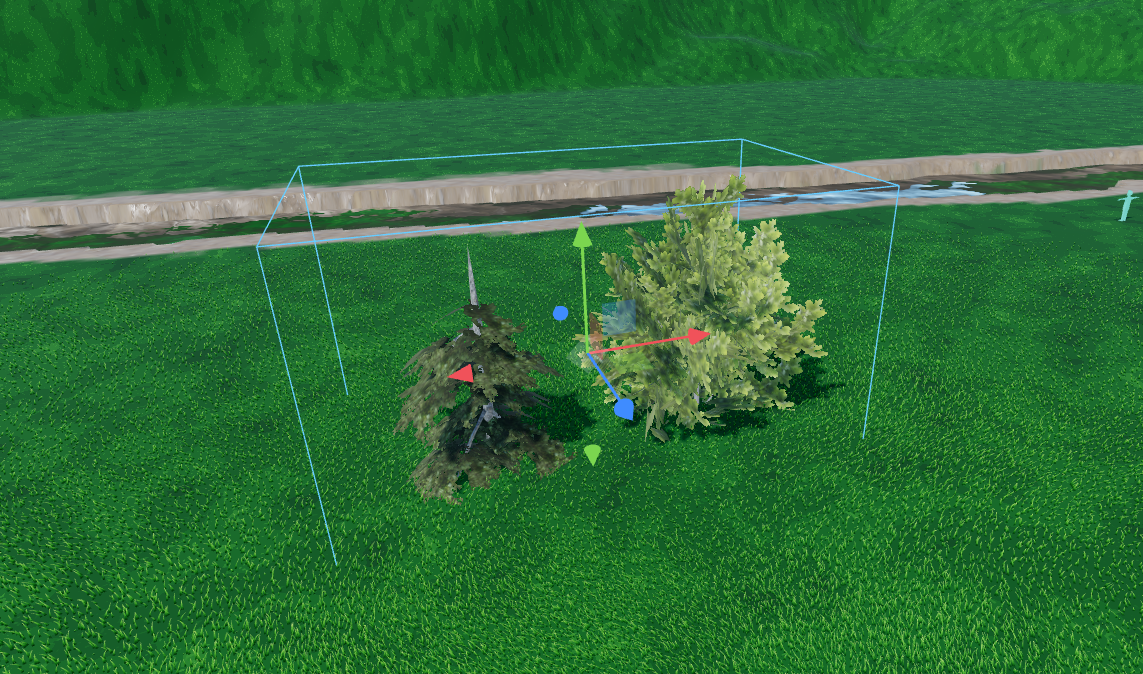
Experiment with different ground types to create a more natural and visually balanced landscape.
6. Populate Your Environment with Trees
A landscape becomes much more interesting when it includes vegetation and environmental objects.
Start by adding multiple trees to your scene. Once you've added the desired tree assets, select the Instance option and switch to Brush Mode.
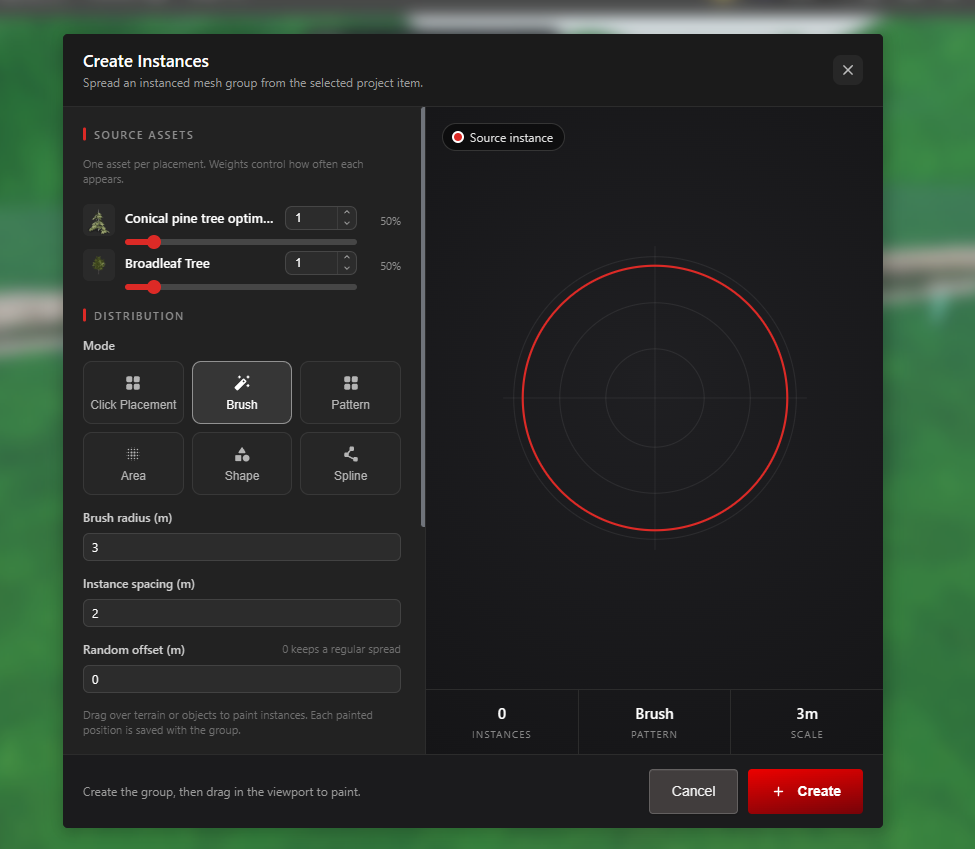
Configure the available brush settings, such as:
- Brush Size: Controls the area in which objects are distributed.
- Gap: Adjusts the spacing between individual instances.
After configuring these values, use the brush to distribute trees across the terrain.
You can paint across the entire ground or concentrate the trees in specific areas, depending on the environment you're creating.
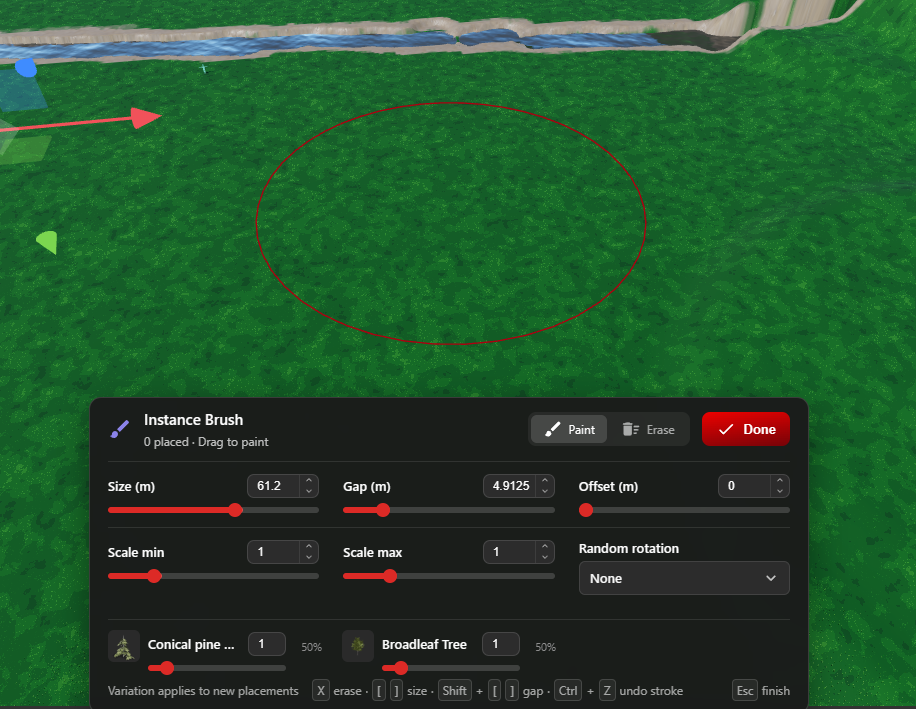
Try varying the placement and density of trees to avoid making the environment look repetitive. You can also leave open spaces for pathways, rivers, and gameplay areas.
7. Review Your Completed Terrain
After sculpting the ground, painting different surfaces, adding water, and distributing trees, your environment should start taking shape.
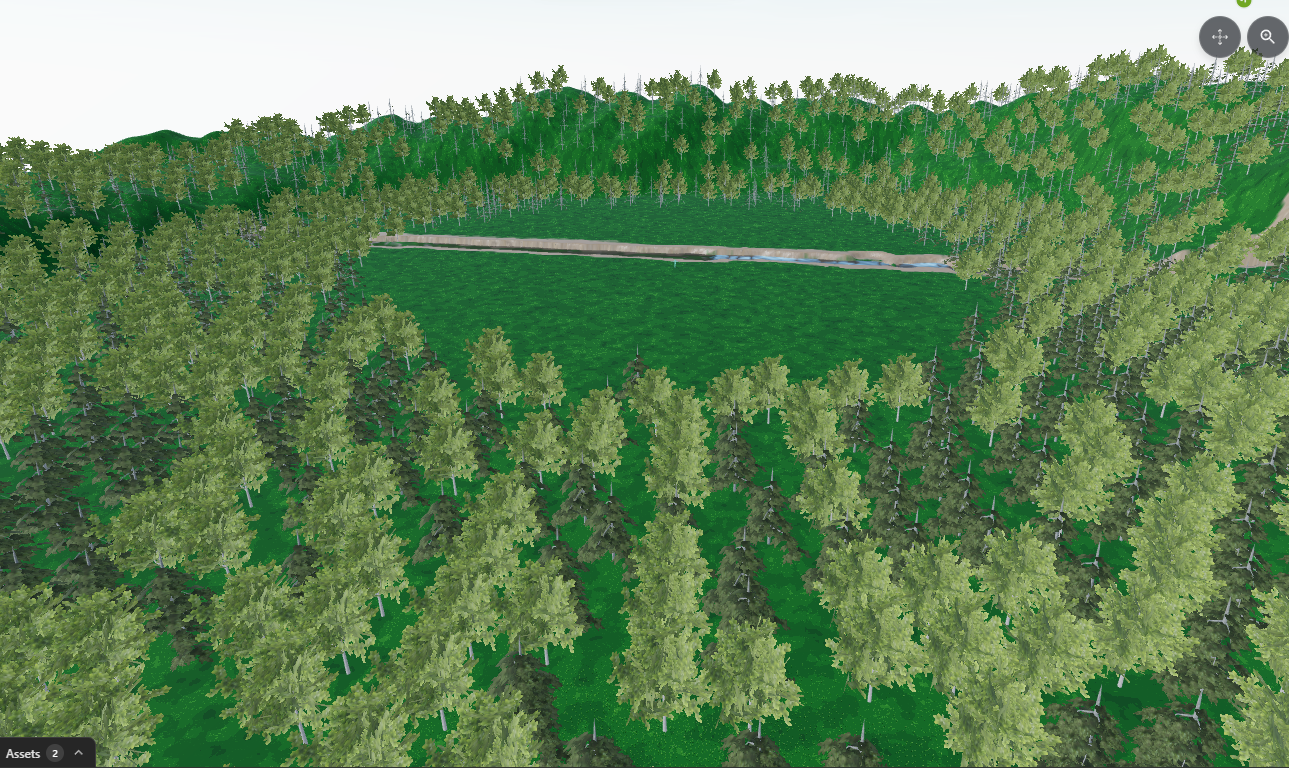
At this stage, review the overall composition of your environment.
Check whether the terrain looks balanced, the vegetation is distributed naturally, and the river fits well within the surrounding landscape.
You can make additional adjustments wherever necessary before moving on to the final visual enhancements.
8. Apply Post-Processing and Fog
The final step is to enhance the visual appearance of your environment.
Post-processing effects and fog can help create depth, improve atmosphere, and give your landscape a more polished appearance.
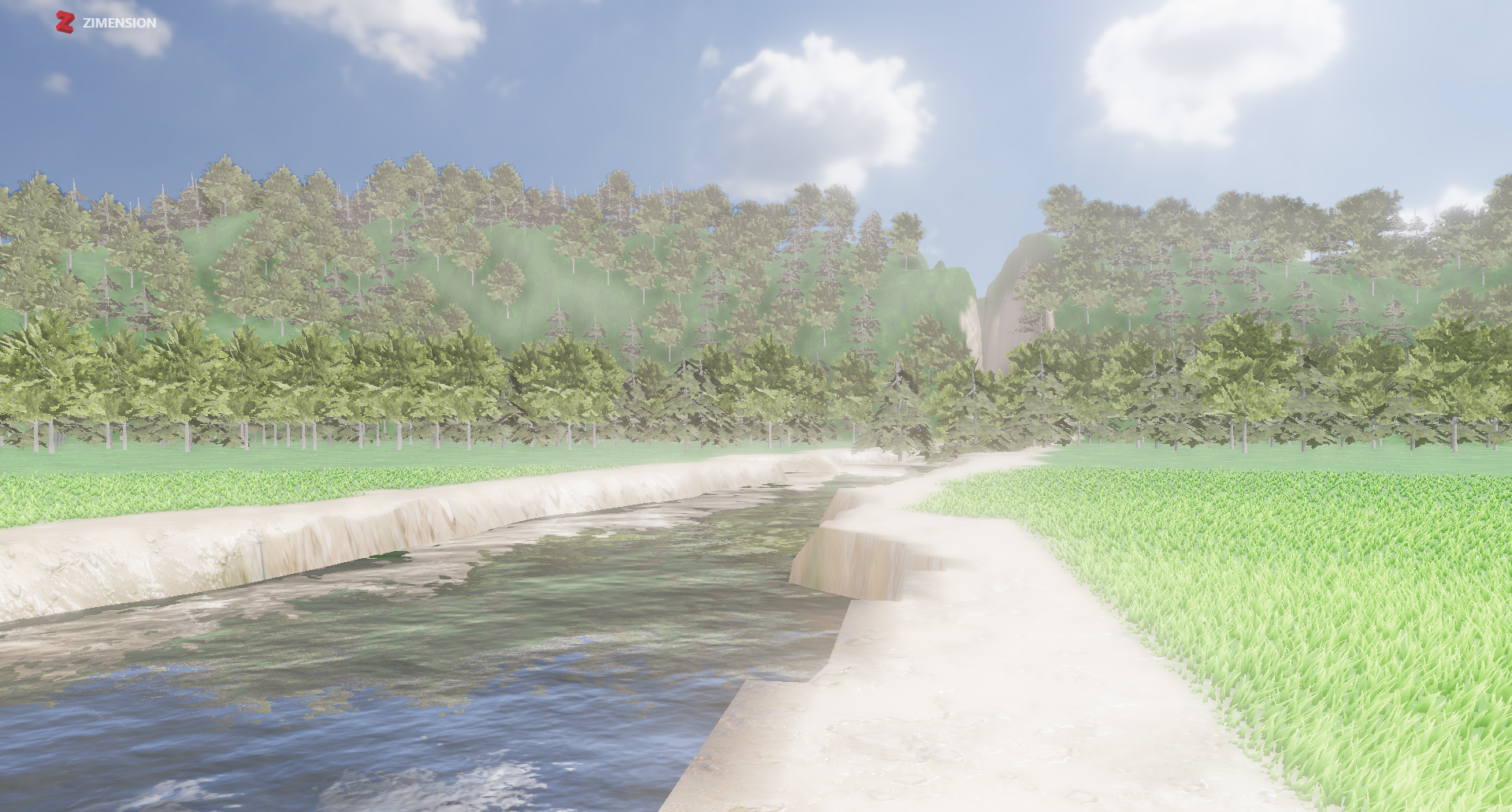
Experiment with different visual settings to achieve the atmosphere you want. For example, fog can create a sense of distance, while suitable post-processing adjustments can help unify the overall appearance of the scene.
Once you're satisfied with the result, your environment is ready for use in your game project.
Conclusion
Creating a 3D game environment doesn't have to be complicated. With the right tools and a little experimentation, you can transform a simple flat surface into a detailed landscape.
Throughout this tutorial, we've explored how to sculpt terrain, create river channels, add water, paint ground surfaces, distribute trees, and enhance the final environment using post-processing and fog.
These techniques provide a starting point for building different types of game worlds, from peaceful forests and natural landscapes to more complex adventure environments.
Ready to create your own world? Open Zimension, experiment with the terrain tools, and start bringing your game environment ideas to life!
Build something like this, without code.
Create 3D games, VR experiences and interactive worlds in your browser.
Related posts
 game development
How Game-Based Learning Makes Education More Engaging
Discover how game-based learning transforms traditional education into interactive adventures through challenges, storytelling, exploration, and problem-solving.
 game development
How to Make Your First Educational Game in Zimension
Learn how to create your first educational game in Zimension, from choosing a fun game idea to designing gameplay, adding rewards, and testing your creation. A beginner-friendly guide.
 game development
How to Make an Escape Room Game Without Coding in Zimension
Build a small escape room in Zimension using Basics, Boolean variables, and a door transition. See the real controls, connect the puzzle, and share a playable link.