


How to Make an Escape Room Game Without Coding in Zimension
Build a small escape room in Zimension using Basics, Boolean variables, and a door transition. See the real controls, connect the puzzle, and share a playable link.
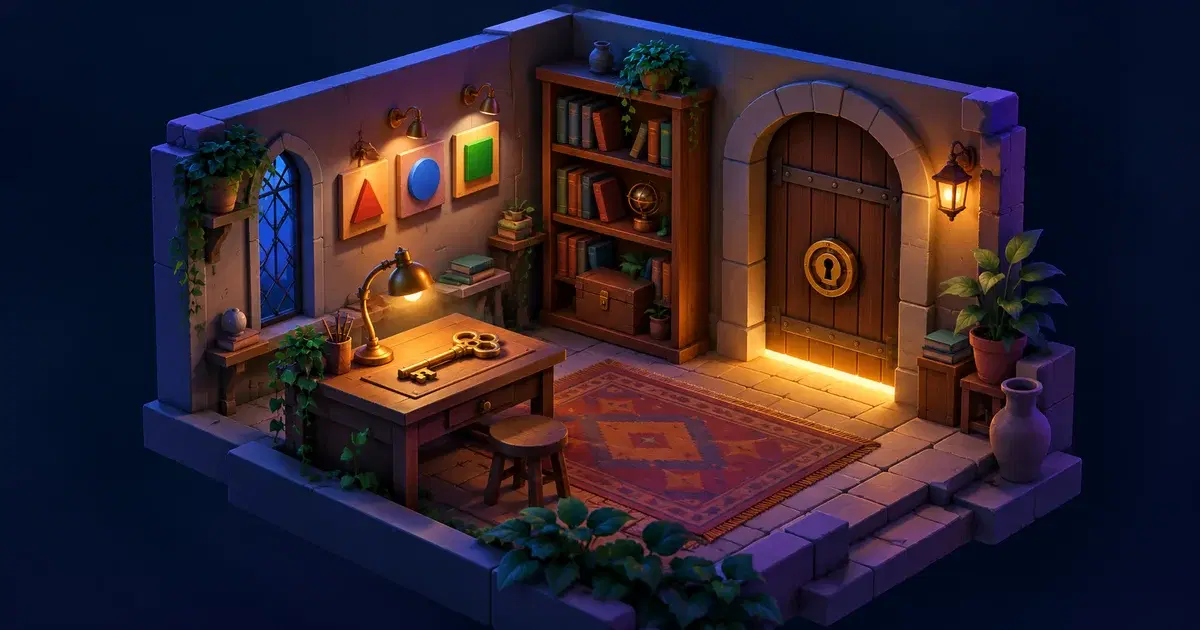
There is a locked door. There is a mysterious desk. There is a suspiciously well-lit key.
Within seconds, a player has a question: “How do I get out?” That is a remarkably efficient introduction. Some games need a cinematic. An escape room can get started with questionable interior design.
To make an escape room game without coding, build a small 3D space, give the player a fair clue, and connect their actions to changes in the room. We'll use Zimension's visual editor for the space and its events, variables, conditions, and object transitions for the puzzle. That lets you work on the clue and its payoff without writing scripts for this first version.
This guide walks through a first room you can build and test in Zimension: one room, three symbols, a key, and a door. You will create the scene, keep track of the player's progress, connect a door-opening action, and share the result for testing.
The screenshots show Zimension's real interface and existing example projects. Create the escape-room variables and events described below in your own project; they are not a preloaded puzzle. Open Zimension in another tab if you want to build along.
Start with a puzzle you can explain in one breath
Here is our room's entire story:
A note identifies one of three symbols. Choose the matching symbol to release a key, then use the key to unlock the exit.
That gives you three meaningful steps: observe, choose, escape.
For a concrete clue, place a note that says, “Choose the shape with no corners.” Nearby, offer a circle, triangle, and square. The circle is the answer. Make the same shapes visible on both the clue display and the selectable objects so the player can connect them.
It is an intentionally easy puzzle. That is useful for a first project: you can concentrate on interaction, feedback, and a complete playable sequence. You can make the clue more interesting after the room behaves reliably.
Leave the secret basement out of version one. It knows what it did.
1. Block out the room before decorating it
In Zimension, choose New Item → Library → Basics to begin with simple shapes. Use boxes for a floor, walls, and a sliding door, then leave space for the clue and puzzle objects. Resize and position them in the viewport. Configure collision on the objects that should block the player, and test that behaviour in Play mode.
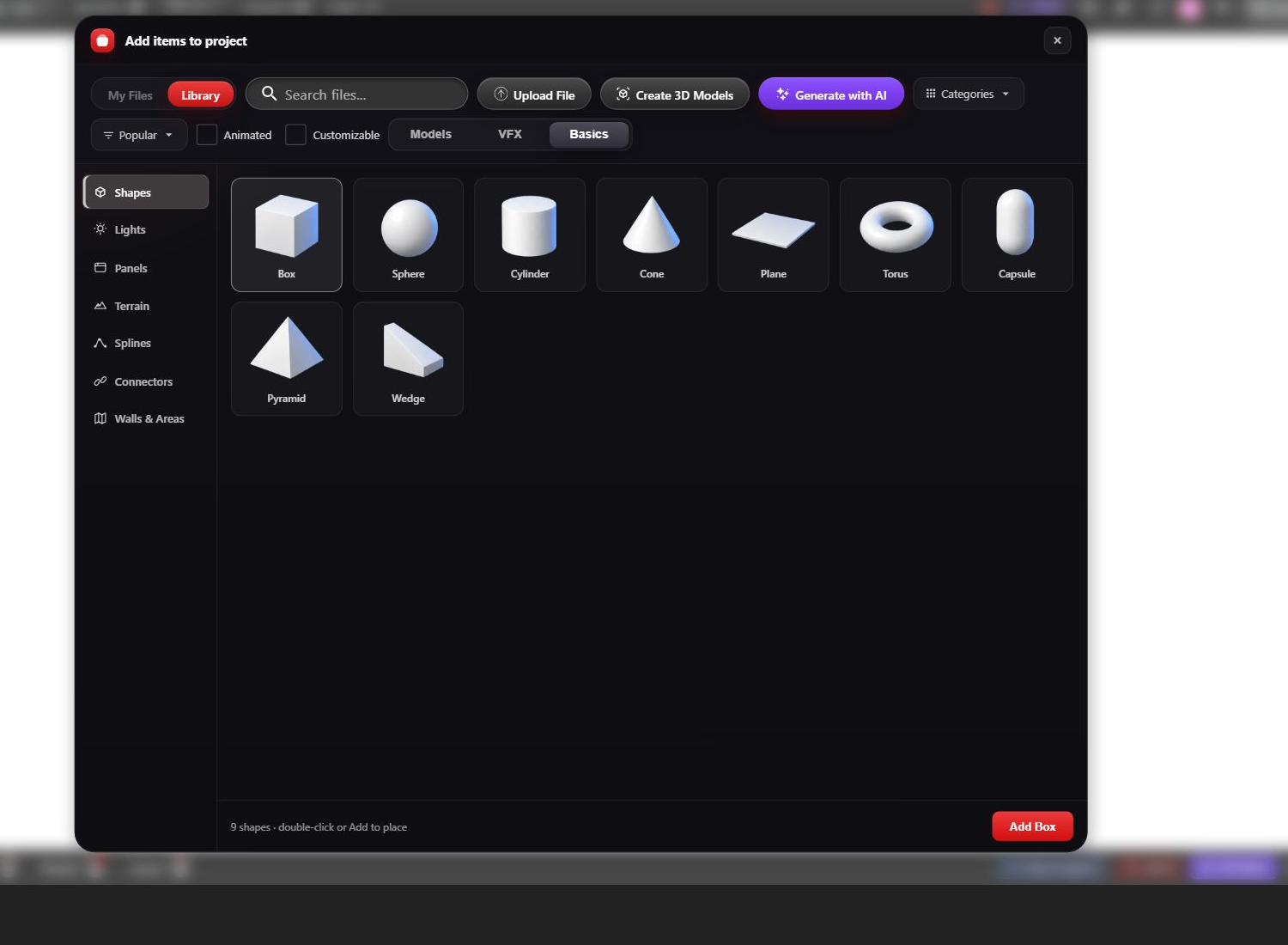
Arrange the room so a player can see the exit soon after starting. Put the first clue somewhere they are likely to look, with enough contrast and space to read it.
Then test the room at player height:
- Can you move between the clue, the symbols, the key, and the door?
- Is the camera comfortable in the space?
- Do walls and furniture behave as solid obstacles where intended?
- Is any essential object hidden behind something decorative?
A bookcase is an excellent atmospheric prop. It is a less excellent substitute for a navigable floor plan.
2. Decide exactly what each interaction does
Write the behaviour in ordinary language before configuring it:
- Inspecting the note reveals the clue.
- Choosing the triangle or square gives a short “try again” response.
- Choosing the circle solves the puzzle and makes the key available.
- Collecting the available key records that the player has it.
- Trying the exit with the key opens the door and completes the room.
- Trying the exit without the key explains that it is locked.
Keep the first version single-player and use one consistent interaction method. In Zimension, name the important events before wiring the objects together: puzzle_solved, key_collected, try_exit, and open_exit are useful choices for this room. Configure the selected object's interaction to trigger the appropriate event, then use a logic flow to decide what that event should do. These are names you create, not built-in commands.
Do not make players click one object, walk into another, and perform an unexplained ritual beside the third. Consistency lets them spend their attention on the puzzle.
3. Give the room a small, clear set of variables
Open Logic → Variables in Zimension. Create these three variables with type Boolean and initial value false:
- PuzzleSolved: starts false; becomes true after the correct choice.
- HasKey: starts false; becomes true when the available key is collected.
- DoorOpened: starts false; becomes true when the exit opens.
These are suggested names for variables you create, not built-in Zimension commands.
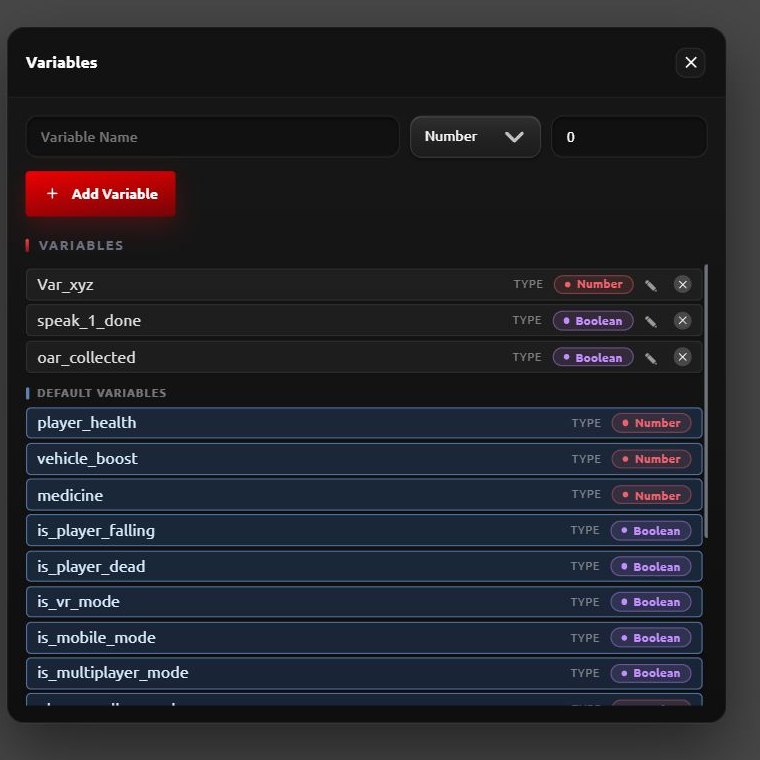
Next, open Logic → Logic Flow and use + New Logic to connect the events to changes and conditions. Keep the logic focused: a symbol selection should handle the puzzle; collecting the key should handle possession; the exit should check whether opening is allowed.
For a diagram of that reasoning in words:
Correct symbol → check the puzzle is unsolved → mark it solved → make the key available.
Collect key → check the puzzle is solved and the key is not already held → record possession → remove the key from the playable area.
Try exit → check possession and that the door is closed → open the door → mark the room complete.
You do not need a general-purpose inventory for one key. A single variable can represent possession. The player's pockets can remain a philosophical matter.
4. Connect the puzzle to a visible change
A correct answer needs a response the player can understand immediately.
Use a Change Variable action to set PuzzleSolved to true after the correct symbol is chosen. A Check Conditions flow can test whether the puzzle is already solved before repeating the reward. When the player collects the available key, change HasKey to true. Those are the same Zimension logic tools you can later reuse for switches, deliveries, or a treasure hunt.
You might move the key from behind a small panel into an accessible position using an object transition, play a brief sound, and update the objective text to “Collect the key.” Configure the key's collection logic so it only works after the puzzle is solved.
Make wrong choices respond too. A short sound or message such as “That shape has corners” acknowledges the input and points back to the clue. Keep it brief enough that repeated attempts do not become a punishment.
Avoid using colour as the only distinction between choices. Shapes, labels, or clear markings make the relationship easier to read for more players.
If you want to check how the pieces fit together in the editor, the Events, Variables & Logic documentation is the relevant starting point.
5. Make the key and door reliable
Collecting the key should do three things together: set HasKey to true, give feedback, and make the key unavailable for another pickup. One visual option is to transition the collected object out of the playable space while the variable records possession.
For the door, use an object transition to move it out of the opening, or rotate it around a correctly positioned hinge. A sliding door can be simpler for a first attempt because its movement is easy to inspect.
Here is how to set up that sliding door in Zimension:
- Select the door and open States in its item settings. Keep the closed position as its Initial State.
- Use + Add State, name the new state Open, and move the door clear of the doorway in that state.
- Open Transitions, add a transition, and keep its type set to States.
- Set Play On to On Event, and choose your open_exit event under Start On.
- Add the closed and open states to Transition Steps, choose a movement duration, and use the transition's preview control to inspect the result.
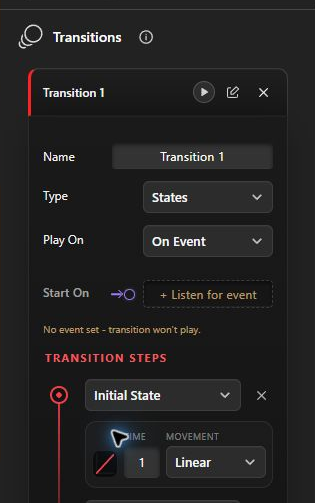
In the try_exit logic flow, check HasKey. The successful branch should trigger open_exit; the unsuccessful branch should lead to the locked-door message. The States & Transitions guide explains the pose and timing controls if you want to refine the movement.
Test the physical result as well as the animation. A beautifully open door with a collision barrier still in the doorway is an escape room's most committed joke.
Set DoorOpened when the opening succeeds, and guard the action so repeated interactions do not keep restarting it. Show a clear completion message or use the project's win event when the intended finish condition is met.
Decide whether opening the door counts as winning or whether the player must pass through the exit. Either can work. The player should be able to tell which one you chose.
6. Add atmosphere that helps the puzzle
Once the full sequence works, add a little character: a warm desk lamp near the clue, a subtle sound when the key becomes available, or a short note explaining why the room is locked.
Use lighting to guide attention without making the rest of the space unreadable. Put visual emphasis on things the player can act on. If the least important vase gets the most dramatic spotlight, expect it to become the lead suspect.
For a short first room, useful objective text can be as simple as:
- “Find the clue.”
- “Choose the matching symbol.”
- “Collect the key.”
- “Unlock the exit.”
You can make the guidance subtler later. First, establish whether the sequence is understandable at all.
7. Playtest the order, including the wrong order
Restart the experience and play it from the beginning after changing the logic. Check that the initial variables, key position, and closed door all reset correctly.
Then try to break it:
- Use the door before solving the puzzle.
- Attempt to collect the key before it is available.
- Choose each wrong symbol.
- Select the correct symbol several times.
- Interact with the key and door repeatedly.
- Restart after winning and attempt the whole sequence again.
Finally, give the room to someone who has not watched you build it. Avoid explaining the solution. Watch where they look, what they try, and whether the feedback changes their next action.
If they do not understand that a symbol is selectable, improve the interaction cue. If they understand the clue but cannot read it, improve the presentation. If they solve everything but cannot finish, inspect the exit logic. Each is a different problem; adding another riddle will not fix any of them.
Before you share your escape room
When the complete room works in Play mode, choose Publish in Zimension and copy the play link for someone who has not seen the solution. They can try the published browser experience, which makes the feedback much more useful than asking whether a screenshot of your door looks mysterious enough.
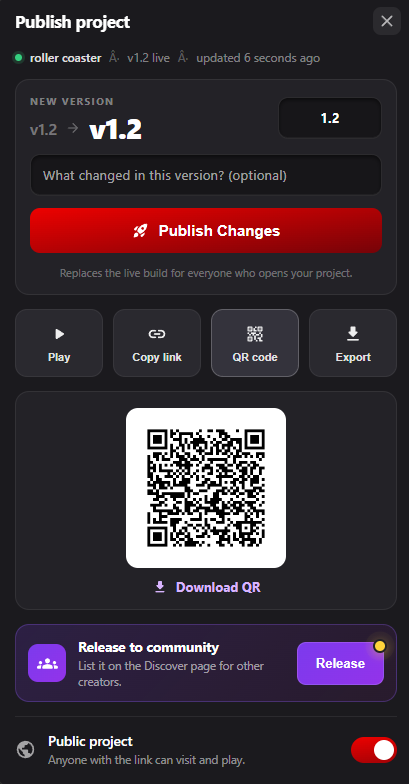
Test that player-facing link from a fresh session, including its controls and restart behaviour. If mobile is part of your intended audience, check on an actual touch device too. The publishing guide covers the sharing workflow.
Give the game a title that suggests its premise and a short description that explains what the player will do. A cover image should show the room clearly without accidentally revealing the answer to a harder puzzle.
For your next room, add one new idea: a second puzzle, an optional hint, or a short story reveal. Resist expanding the entire building before you know what made the first room enjoyable.
Frequently asked questions
Can I make a 3D escape room without programming?
Yes. Zimension provides visual scene editing and event-driven logic, including variables and conditions. You can use these to connect puzzle interactions, key possession, and a door-opening transition without writing scripts. You still need to configure and test the sequence.
How many puzzles should my first escape room have?
Start with one complete puzzle that leads to an exit. This gives you a manageable way to test clues, interactions, feedback, and the win condition. Add another puzzle after a new player can finish the first version unaided.
Does an escape room need a countdown timer?
No. A timer is a design choice. Leave it out initially so you can observe whether the puzzle makes sense without time pressure. Add one later only if urgency improves the experience you want to create.
Can the same room become a VR experience?
Zimension supports XR experiences, but a desktop room still needs a separate VR pass. Review movement comfort, interaction reach, text readability, physical scale, and supported hardware. Test on the intended headset before describing the room as VR-ready.
Want a simpler project to practise first? Explore these seven small 3D game ideas for beginners.
Build your first room in Zimension: Open the editor, add a floor and door from Basics, and make the closed-to-open transition work. Then connect the key check. That small working loop is the project; you can give the suspicious vase its own backstory after somebody escapes.
Build something like this, without code.
Create 3D games, VR experiences and interactive worlds in your browser.
Related posts
 game development
7 Small 3D Game Ideas for Beginners You Can Actually Finish
Explore seven small 3D games you can build in Zimension, with real editor screenshots, practical first versions, and a route from library assets to a playable link.
 game development
How to Make a 3D Game Without Coding: Beginner’s Guide
Learn how beginners, students, designers, and non-programmers can create their first 3D game without writing code using Zimension’s browser-based no-code 3D game engine.