

States & Transitions
States and Transitions
A state saves an item's transform at a specific moment. A transition moves the item through one or more saved states when the project starts, the player interacts, or an event fires.
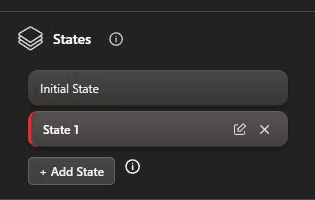
Create Item States
- Select the item and expand States in Item Settings.
- Position, rotate, and scale the item for its starting pose. The first card is the item's Initial State.
- Click + Add State. The new state copies the currently selected state.
- Rename the new state, select it, and change the item's transform in the viewport or Manipulation controls.
- Repeat for every pose the item needs, such as Closed, Open, Raised, or Hidden Position.
Each state stores position, rotation, and scale. Some supported item types also keep their state-specific VFX settings. Selecting a state previews that saved pose in the editor.
Create a State Transition
- Create at least one state in addition to the Initial State.
- Expand Transitions and click + Add Transition.
- Give the transition a clear name and keep Type set to States.
- Choose Play on: On Start, On Interaction, or On Event.
- For On Event, select the required Start on event.
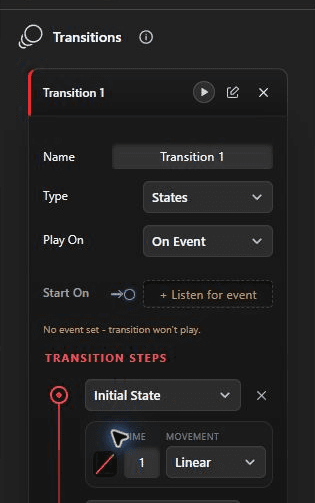
- Under Transition Steps, choose the starting state and destination state.
- Set the connector's Time and Movement, then use the play button on the transition card to preview it.
Transition Steps
Steps are evaluated from top to bottom. The Time and Movement controls between two steps describe how the item travels from the first state to the next one. Click + Add state inside the transition to build a multi-step sequence.
- Time - Seconds used to reach the next state.
- Linear - Moves at a constant rate.
- Smooth - Eases into and out of the movement.
- Loop - Repeats the sequence continuously.
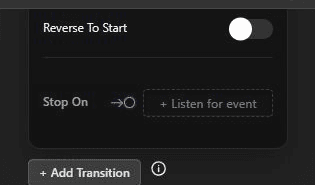
- Reverse to start - Returns to the first step after reaching the end.
- On Finish - Emits an event after a non-looping transition finishes.
- Stop on - Stops a looping transition when the selected event fires.
Follow a Spline Path
Set Type to Follow Path when an item should travel along a spline instead of moving through state steps. Choose the spline, set Speed, and use Align to path or Reverse direction as needed. Add a spline from New Item > Basics > Splines before selecting it here.
Example: Event-Driven Door
- Save the closed door as Initial State.
- Add an Open state and rotate or move the door into its open position.
- Create a transition with Initial State followed by Open.
- Set Play on to On Event and Start on to
open_door. - Use Smooth movement and set the Time to the desired opening duration.
- Set On Finish if another system should react when the door is fully open.