

Events, Variables & Logic
Logic Workflow (No-Code Gameplay Logic)
The Logic Workflow in Zimension allows creators to define gameplay behavior without writing code. Logic is built using Events, Variables, Conditions, and Actions.
This system follows a simple rule:
When an event happens → perform actions → optionally check conditions → trigger next events
1. What is a Logic Flow?
A Logic Flow is a chain of actions that executes when a specific event occurs.
Examples:
- When player interacts → open a door
- When health becomes zero → trigger player death
- When variable reaches a value → show message or end game
Each logic flow starts with an Event.
2. Logic Flow Panel
Accessing Logic Flow
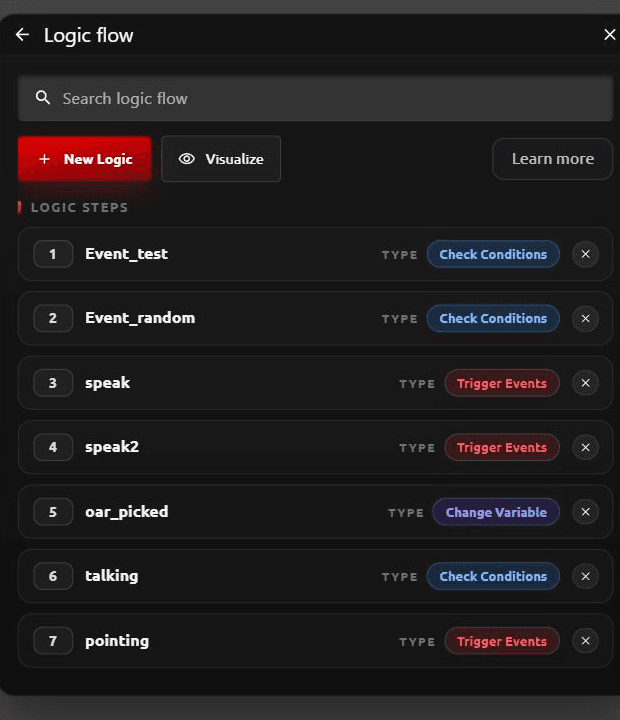
- Open Logic from the top navigation
- Click + New Logic to create a logic flow
- Use Visualize to see existing logic connections
If no logic exists, the editor prompts you to create one.
3. Logic Flow Structure
Each logic flow is built inside an "On Event" container.
On Event
- Defines when this logic should run
- The logic activates only when the selected event is triggered
4. Trigger Events
Trigger Events allow you to perform actions immediately when an event occurs.
Available Actions
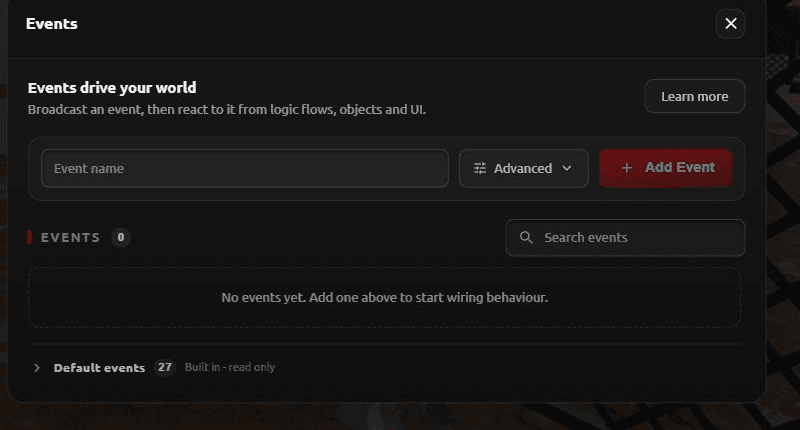
Add Events
- Trigger another event
- Used to chain logic across systems
Delay
- Add a time delay (in seconds) before executing the next action
Open Link
- Opens a URL
- Useful for external pages, forms, information links
Show Message
- Displays a message to the player
- Useful for tutorials, hints, or notifications
5. Change Variable
This section allows logic to modify variables dynamically.
Variable Selection
- Choose an existing variable
Operators
- = Set value
- Other operators depending on variable type
Use Cases
- Increase score
- Reduce health
- Track collectibles
- Store game state
6. Check Conditions
Conditions allow logic to branch based on values.
Condition Structure
- Variable
- Operator (=, >, <, etc.)
- Value or Variable
TRUE Path
- Event triggered if the condition evaluates to TRUE
FALSE Path
- Event triggered if the condition evaluates to FALSE
This allows decision-based gameplay.
Examples
- If health == 0 → trigger death event
- If score ≥ target → trigger win event
- If key collected → open door
7. Variables System
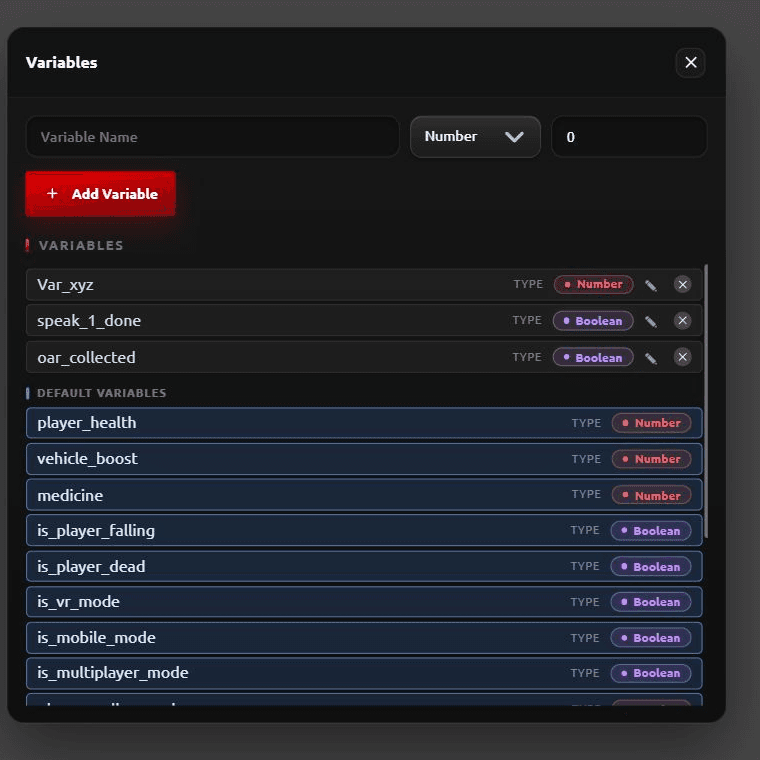
Variables store data that logic can read and modify.
Creating a Variable
- Enter variable name
- Select type (Number, etc.)
- Set initial value
- Click Add
Variable Usage
Variables can be used in:
- Logic flows
- Conditions
- UI bindings
- Gameplay systems
Common Variable Examples
- player_health
- score
- coins
- has_key
- enemies_remaining
8. Example Logic Flow
Goal: Reduce player health when hit
- Collision occurs with enemy
- Collision triggers player_hit event
- Logic flow runs on player_hit
- Reduce player_health by 10
- Check if player_health == 0
- If TRUE → trigger player_dead
- If FALSE → continue gameplay
No code required.
9. Best Practices
- Use clear event names (e.g., player_hit, game_over_win)
- Keep logic flows small and modular
- Use variables to avoid hardcoding values
- Chain events instead of making very long flows
- Visualize logic frequently to avoid confusion
10. Who Should Use Logic Workflow?
- Beginners
- Designers
- Educators
- Rapid prototyping
- No-code creators
Logic Workflow is the core gameplay system of Zimension.