

Overview
Project Editor Overview
The Zimension Project Editor is the main workspace for building, configuring, testing, and publishing an interactive project.
The current editor brings these systems together:
- Project configuration, lighting, and ground
- Scene management and project items
- Player settings and interactions
- Logic, monetisation, UI, cutscenes, and scripting
- AI-assisted creation, preview, play, sharing, export, and publishing
Top Navigation Bar
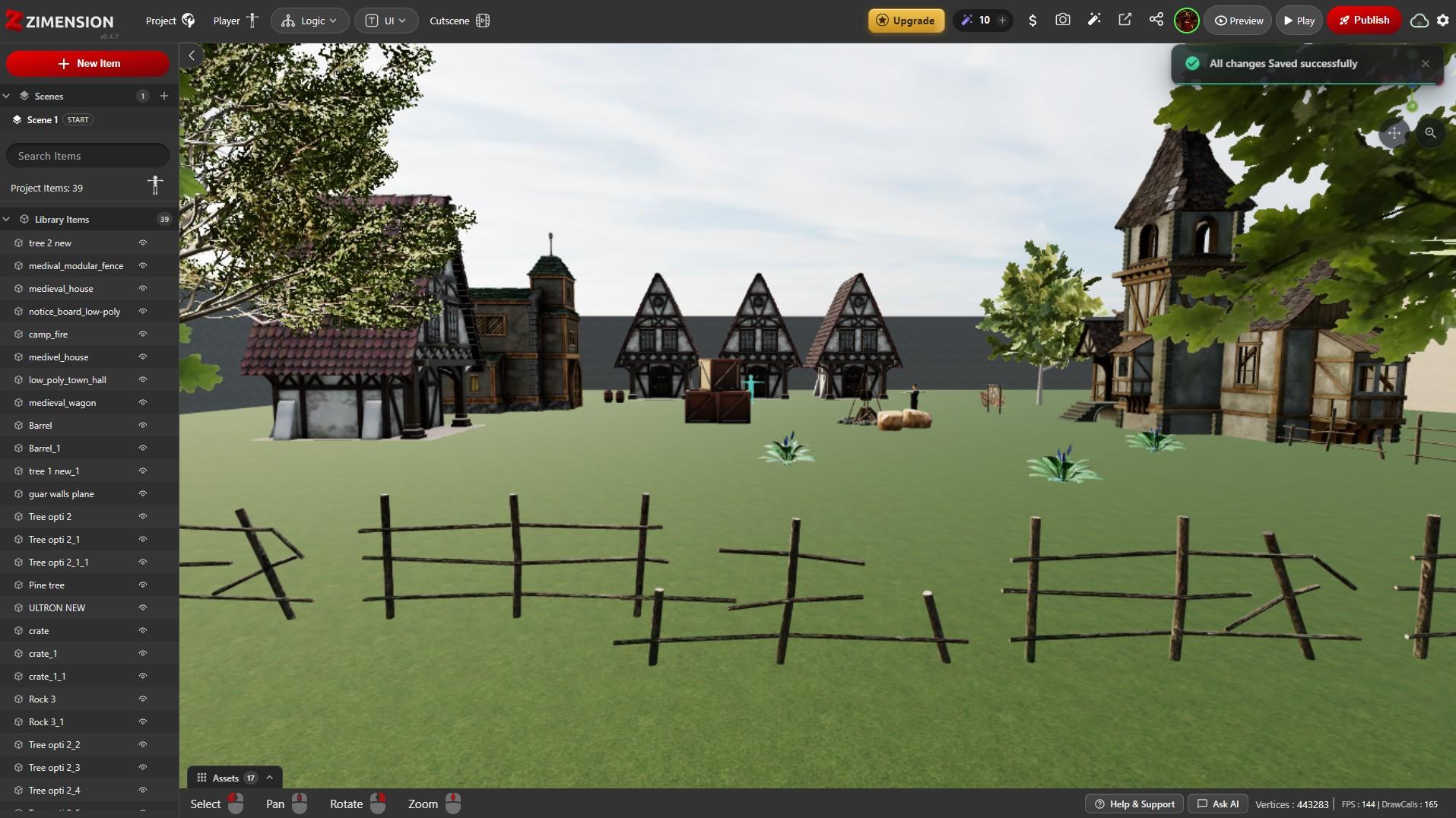
Creation systems appear on the left, while project actions and release controls appear on the right.

Project
- Project-level configuration
- Environment, ground, and global settings
Player
- Player character setup
- Player appearance and behavior
Events
- Central event system
- Create and manage named events used across the project
Variables
- Global and project variables
- Used for logic, UI, and gameplay flow
Logic
- No-code logic builder
- Event → Action based gameplay
Monetise
- Supported in-project monetisation tools
- Features marked Test are still evolving
Overlay UI
- UI elements rendered over the project
- Menus, prompts, overlays
HUD UI
- In-game HUD elements
- Health, score, ammo, indicators
Cutscene
- Scripted sequences
- Camera and animation-driven scenes
Script
- Custom scripting for advanced behavior
- Optional and advanced feature
Preview / Play / Publish
- Preview - Quick test
- Play - Full playable mode
- Publish - Make the project public
Workspace Controls & Project Items
Project Details
- Basic project information
- Metadata and identification
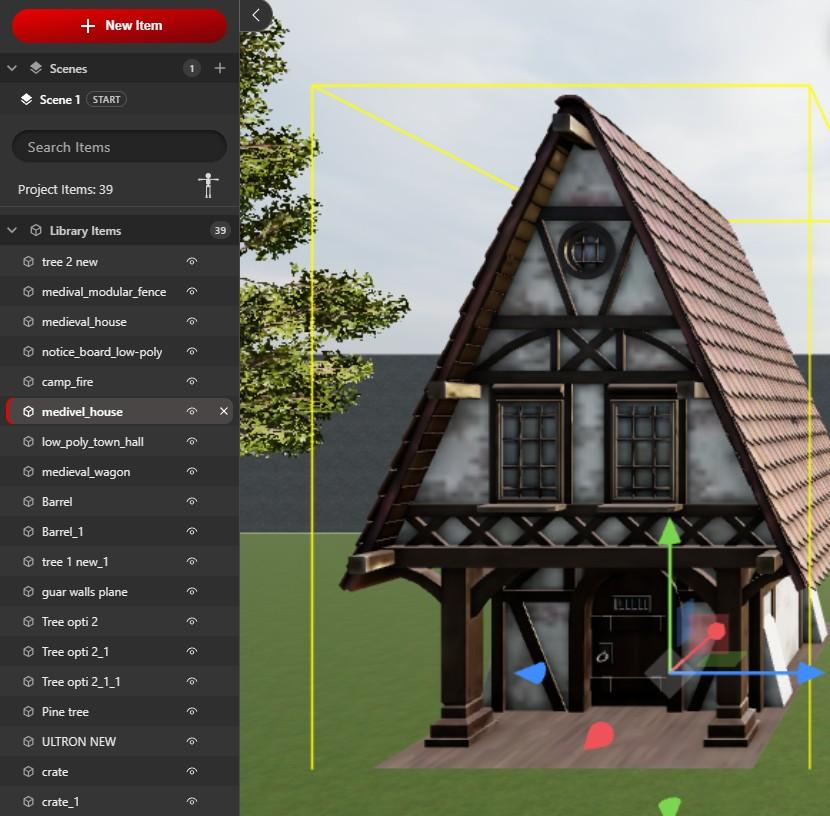
Project Items List
- All items present in the project
- Shows visibility toggle for each item
- Search and filter support
Scenes
- Switch between project scenes
- Duplicate, rename, or remove eligible scenes
- Create additional scenes from the sidebar
Adding New Items
- "+ New Item" button
- Add props, objects, characters, utilities
The asset palette at the bottom of the sidebar provides quick access to recently used assets.
Scene View & Editing Controls
Project Viewport
- 3D representation of the project
- Real-time editing and preview
View Controls
- Select
- Pan
- Rotate
- Zoom
Orientation & Selection
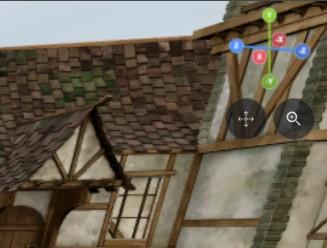
- The orientation gizmo in the upper-right shows the active axes
- Selected objects are outlined in the viewport
- Item-specific transform controls appear when an object is selected
Contextual Settings
Editor settings are contextual. Selecting Project, Player, Lighting & Ground, or an individual project item opens the controls relevant to that selection while keeping the main viewport clear.
Environment Settings
Background
- Solid color or HDR background
- Upload custom background (png / exr)
Lighting
- Ambient intensity
- Environment intensity
- Exposure
Fog
- Enable / disable fog
- Atmospheric depth
Sun
- Ambient light color
- Light intensity
- Sun position (directional control)
Shadows
- Enable / disable shadows
- Shadow mode (Desktop only, etc.)
Ground Settings
Ground Type
- Plane
- Rocky forest
- Water
- Concrete
- Grass
- Snow
Ground Properties
- Color
- Roughness
- Reflectivity
Project Size
- Size of the playable area (meters)
Sound (Project-Level)
- Global sound settings
- Ambient or background audio
Other Project Settings
- Hide watermark
- Multiplayer toggle
- Disable copy
- Enable WebGPU
- Combine static objects
- Combine same materials
- Disable dynamic shadows
- Mixed reality only
These options mainly impact performance, access, and platform behavior.
Help, AI Tools & Performance
The lower-right toolbar provides Help & Support, Ask AI, and AI Creator. It also displays live scene statistics such as vertex count, frames per second, and draw calls so you can monitor project complexity while editing.
Player Physics (Clarification)
Zimension currently supports:
- Player gravity
- Player collision with project items
Not supported:
- Rigid body physics
- Object-to-object physics
- Force or mass simulation
This ensures performance and simplicity.