


Environment
Environment
The Environment section controls the overall visual atmosphere of the project, including background and lighting.
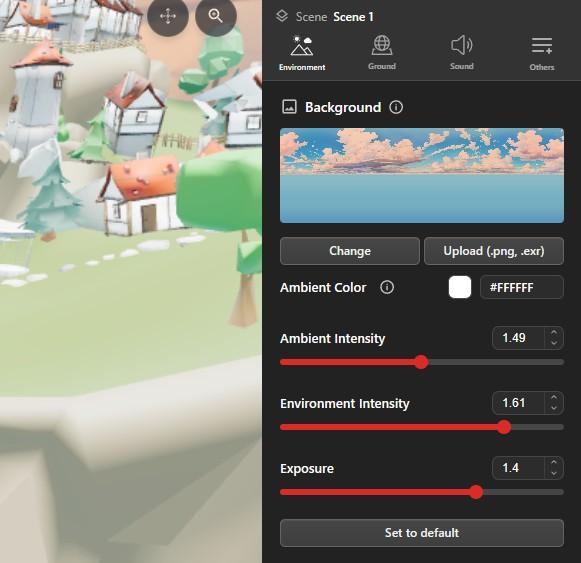
Background
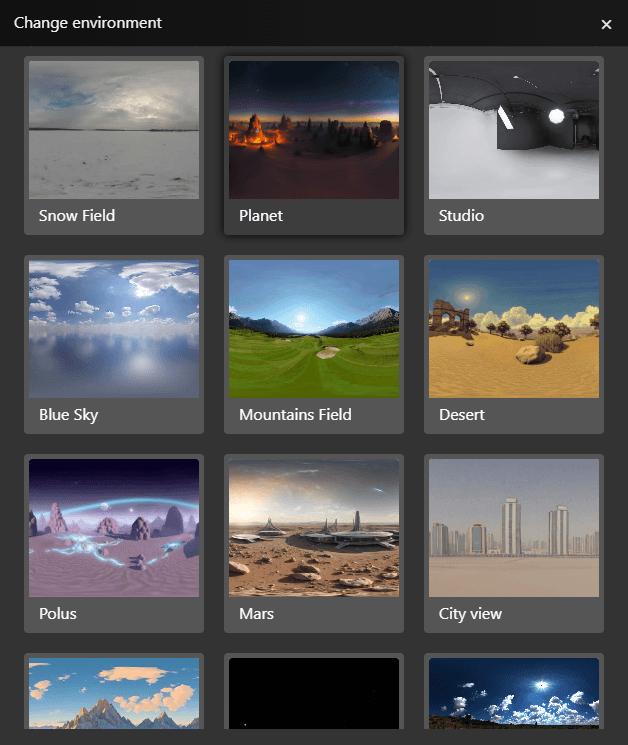
The background is the 360 image wrapped around the project. It is what players see past the edges of your scene, and it also lights the scene, so changing it changes the mood of everything in it.
- Change - open the environment browser and pick a different background.
- Upload (.png, .exr) - use your own 360 image. An
.exrcarries a wider range of brightness, so it lights a scene more convincingly than a.png.
Lighting Controls
- Ambient Color - colour of the base light filling the scene.
- Ambient Intensity - how much of that base light there is. Raise it to lift dark corners.
- Environment Intensity - how much light the background image itself casts into the scene.
- Exposure - overall brightness of the final image, like the exposure on a camera.
- Set to default - restore the environment settings to their starting values.
Sun
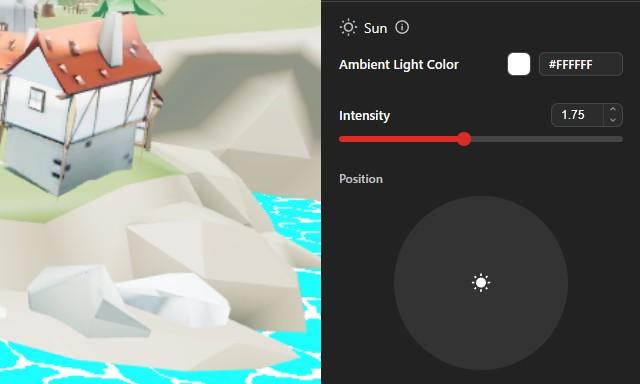
- Ambient Light Color - colour of the sunlight. Warm tones read as morning or evening, cooler tones as midday.
- Intensity - brightness of the sun.
- Sun Position - where the sun sits. Drag the marker in the dial; a low sun gives long shadows, a high sun gives short ones.
Shadows
The Shadows toggle turns shadow rendering on and off. Shadow mode decides where they are drawn:
- Auto - let the project decide per device, so weaker machines skip shadows and keep their frame rate. This is the default.
- On - always draw shadows.
- Desktop only - shadows on desktop, none on mobile.
- Off - no shadows.
Post Processing
Post processing is applied after the scene is drawn. Turn the section on to reveal the effects, each with its own toggle.
- Bloom - soft glow around bright areas, with Threshold for how bright a pixel must be to glow, Strength for how strong the glow is, and Radius for how far it spreads.
- Ambient Occlusion - soft contact shadows where surfaces meet, which stops objects looking like they float.
- FXAA - anti-aliasing, which smooths jagged edges.
Post processing costs performance. Test on the weakest device you expect players to use.
Fog
Fog is its own section, not part of post processing. Turn it on to set Fog Density and the fog colour. It fades distant objects into the haze, which suits outdoor scenes and can hide the far edge of a large project.