
Animation
Item Animations
Animations can be attached to any project item and are event-driven.
Animation Playback
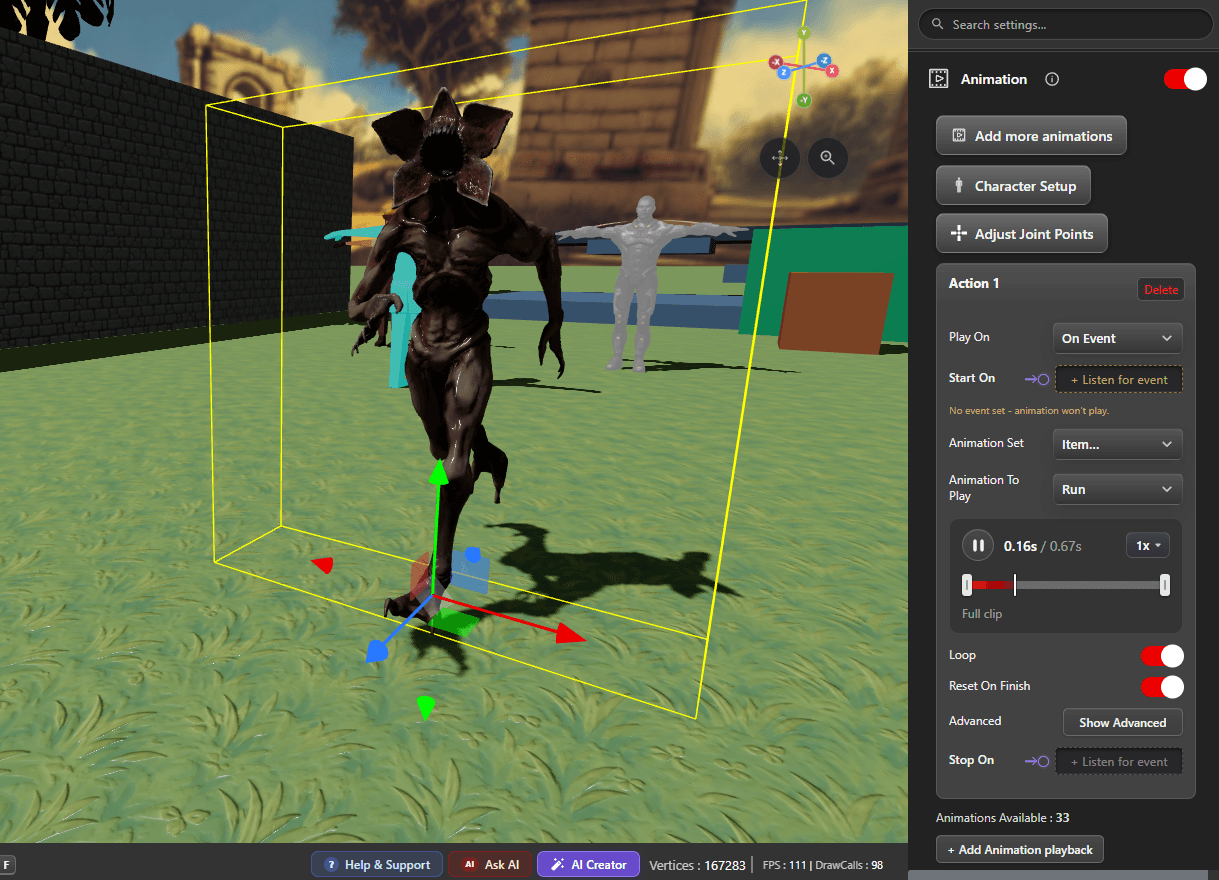
Each Animation playback card plays one clip. Use + Add Animation playback for a second clip on the same item, for example an idle loop and a separate reaction. The count under the cards shows how many clips the item has to choose from.
- Play On - when the clip plays: On Start, On Event, or On Interaction.
- Start On - the event that starts it when Play On is set to On Event. A card with no event set warns you, because it will never play.
- Animation Set - where the clip comes from. Item animation uses a clip built into the model, Custom added uses one you added from the animation library, and Default uses a built-in procedural motion such as spin, hover, or pulse, which needs no clip at all and works on any item.
- Animation To Play - the clip itself.
- Loop - repeat the clip instead of playing it once.
- Reset On Finish - return the item to its starting pose when the clip ends.
- Stop On - an event that stops the clip early.
Previewing a Clip
The playback bar on the card scrubs the clip in the editor, with the current time, the clip length, and a speed control. Drag the handles at each end to use only part of a clip, for example the second half of a long animation. This is an editor preview: it holds the item at the frame you leave it on, and normal playback takes over when the project runs.
Advanced
- Start time (s) and End time (s) - play only part of the clip.
- Speed - play the clip faster or slower.
- Reverse direction - play the clip backwards.
Character Setup
A character model has to know which of its clips is a walk, a run, a jump, and an idle before the player controls or character behaviours can drive it. Character Setup is where that mapping lives.
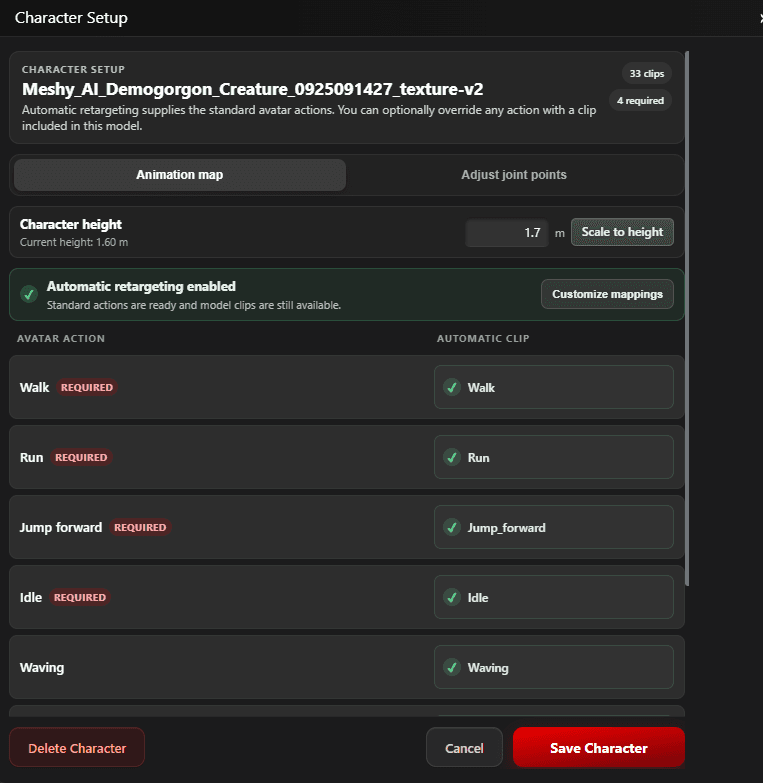
- Character height - the model height in meters. Scale to height resizes the character to the value you enter, which is the quickest way to get it in proportion with the rest of the project.
- Automatic retargeting - the standard avatar actions are supplied for you, so a character works without mapping anything by hand. Customize mappings lets you override any action with a clip included in the model.
- Avatar actions - the list of actions and the clip each one uses. Four are marked REQUIRED: Walk, Run, Jump forward, and Idle. The rest are optional.
- Adjust joint points - the second tab, for correcting where the joints sit when a pose looks wrong. It is also reachable from the Adjust Joint Points button in the Animation section.
- Save Character keeps the setup. Delete Character removes the character setup from the item.
Add More Animations
A model arrives with whatever clips its creator included. Add more animations adds clips from the animation library to a character that does not have them, such as a dance, a wave, or a sit.
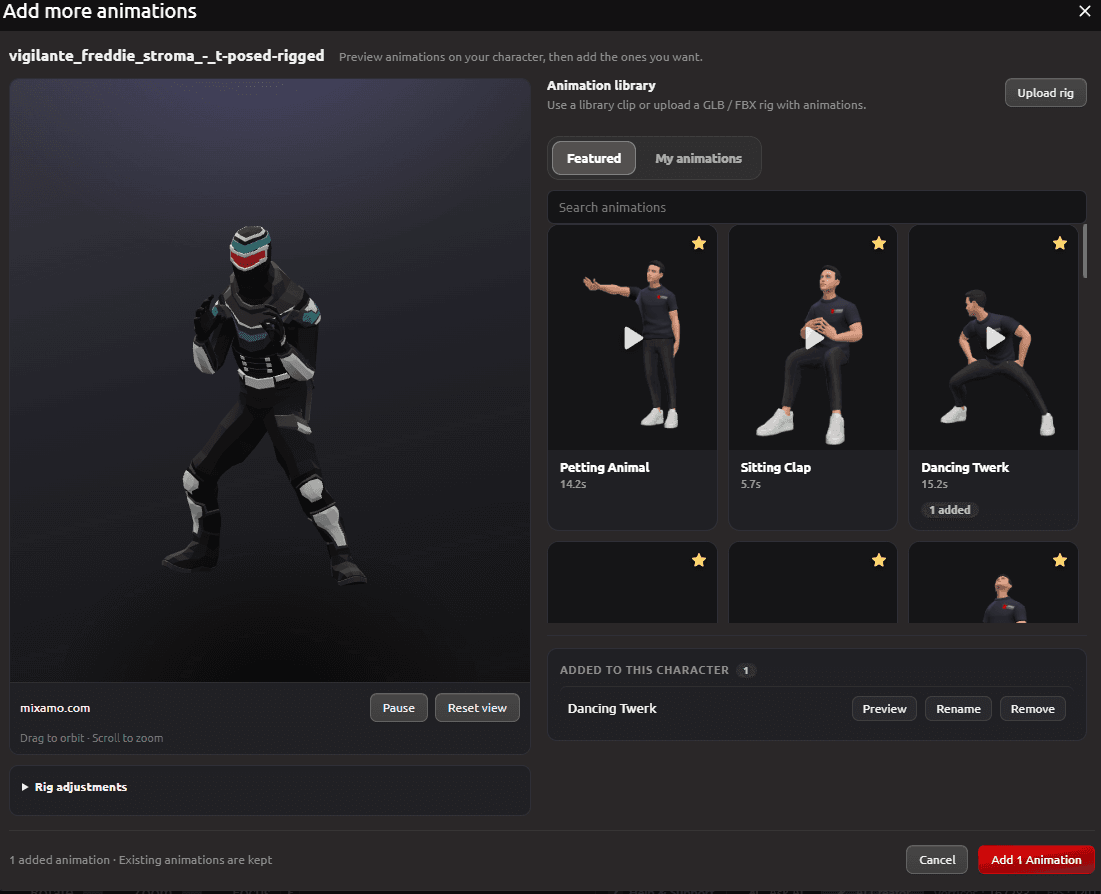
- Featured and My animations - the Zimension library, and clips you have added yourself.
- Search animations - find a clip by name. Each tile shows its length.
- Preview - click a tile to play it on your character in the viewer. Drag to orbit and scroll to zoom.
- Added to this character - what you have selected so far, where each clip can be previewed, renamed, or removed. Rename a clip to something you will recognise later in the Animation To Play list.
- Upload rig - bring in your own GLB or FBX rig with animations instead of using the library.
- Rig adjustments - corrections for a clip that does not sit correctly on your character.
Adding clips does not replace what the character already has. Confirm with the add button, then pick the new clip on a playback card with Animation Set set to Custom added.