


CtrlK
Sound
Sound
The Sound section controls global audio settings for the project.
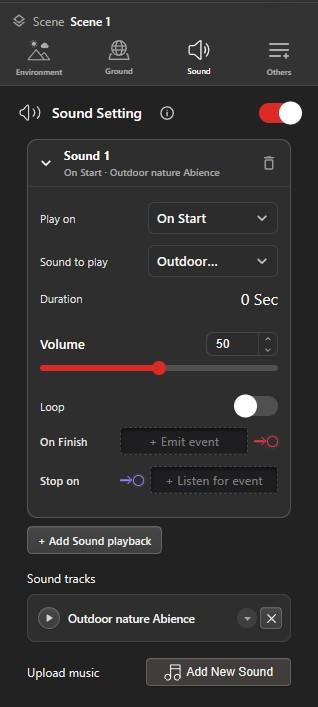
Sound Tracks
Sound tracks lists the audio files loaded into the project. Use Add New Sound under Upload music to add your own file. Each track can be previewed with the play button or removed with the close button. Tracks are the source list that every sound playback chooses from.
Adding a Sound from the Library
Add New Sound opens the Sounds browser. Pick a sound there and it is added to Sound tracks, ready to select in any sound playback.
- My Sounds - audio you have already uploaded to your account.
- Featured - the Zimension sound library, tagged by type and category, for example SFX, MUSIC, and Ambient.
- Search sounds - filter the list by name.
- Type - narrow the list to one type, such as SFX or MUSIC.
- Category - narrow the list by category. This filter appears on the Featured tab.
- Play button - preview a sound before adding it. Each entry also shows its file size, which is worth watching for a project that has to load quickly.
- Upload From Device - add your own audio file from your computer.
- Generate Dialogue - create spoken dialogue audio instead of picking a file.
Sound Playback
+ Add Sound playback adds an entry that plays one track. Add as many as the project needs, for example background music plus a separate ambience loop.
- Play on - On Start plays as soon as the project loads, On Event waits for an event. Choosing On Event adds a Start on field for that event.
- Sound to play - the track from Sound tracks that this entry plays.
- Duration - the length of the selected track, shown in seconds.
- Volume - playback level for this entry.
- Loop - restart the track when it ends. Use this for background music and ambience.
- On Finish - emit an event when the track finishes on its own. It does not fire while Loop is on, and it does not fire when the sound is stopped early.
- Stop on - listen for an event that stops this playback.