


CtrlK
Vehicle System
Vehicle System
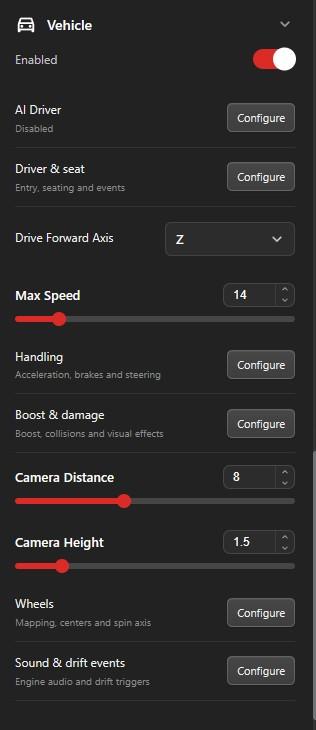
The Vehicle System turns a project item into a drivable vehicle. Use it for cars, carts, off-road vehicles, and other player-controlled models. Select the vehicle item in the editor and open the Vehicle section in the item settings panel.
Video Tutorial
Basic Setup
- Add or upload a vehicle model as a project item.
- Select the item and open the Vehicle section.
- Turn on the Vehicle toggle. Collision is enabled automatically when needed.
- Set Drive Forward Axis to match the model direction.
- Use Seat Target Mesh and Adjust Seat to place the avatar correctly.
- Map wheels manually or use Auto-map.
- Test in Play mode and tune speed, steering, camera, sound, boost, and VFX.
Interaction Settings
- Interaction Label - Prompt shown when the player can enter. Default: Enter Vehicle.
- Exit Label - Prompt shown while driving. Default: Exit Vehicle.
- On Enter - Event emitted when the player enters the vehicle.
- On Exit - Event emitted when the player exits the vehicle.
- Avatar Mode - Seat Avatar keeps the avatar visible on the seat. Hide Avatar hides the avatar while driving.
Movement And Physics
- Drive Forward Axis - Forward +Z, -Z, +X, or -X. Fix this first if the vehicle drives sideways or backwards.
- Max Speed - Top forward speed. Default: 14.
- Reverse Speed - Top reverse speed. Default: 5.
- Acceleration - How quickly the vehicle reaches speed. Default: 18.
- Brake - How strongly the vehicle slows or changes direction. Default: 24.
- Steer Speed - How quickly steering input turns the wheels. Default: 2.4.
- Steer Return - How quickly steering returns to center. Default: 3.2.
- Max Steer Angle - Maximum turn angle in radians. Default: 0.55.
- Vehicle Mass - Runtime mass value for the vehicle. Default: 1200.
Boost
Boost is optional. When enabled, the player can temporarily multiply speed and acceleration while boost charge is available.
- Boost - Turns boost on or off. Default: off.
- Boost Multiplier - Multiplies max speed and acceleration while boosting. Default: 1.8.
- Boost Duration (s) - How long a full boost charge lasts. Default: 3.
- Boost Recharge (s) - How long boost takes to refill from empty. Default: 4.
- Boost VFX - Shows boost flame puffs while boosting.
- vehicle_boost - Built-in variable containing current boost charge from 0 to 100.
- increase_boost_20 - Built-in event that restores 20 percent boost charge.
- full_boost - Built-in event that refills boost charge completely.
Camera And Seat
- Camera Distance - Distance of the follow camera behind the vehicle. Default: 5.5.
- Camera Height - Height of the follow camera above the vehicle. Default: 2.
- Seat Target Mesh - Model node used as the seat anchor. Use Vehicle Root if the whole model is the anchor.
- Adjust Seat - Opens the seat adjustment viewer so you can position and rotate the avatar seat visually.
- Seat Animation - Animation played on the avatar while seated. Default: Sitting_Idle.
Wheel Mapping
Wheel mapping controls procedural wheel spin and front-wheel steering. Front Left and Front Right receive steering pivots. Rear Left and Rear Right spin with vehicle movement.
- Auto-map - Attempts to detect and assign wheels from model nodes.
- Front Left / Front Right / Rear Left / Rear Right - Manual wheel slots. Select named meshes or groups from the vehicle model.
- Clear - Removes manual mapping and returns to auto-detection.
- Spin Axis - Default Auto. Override to X, Y, or Z if wheels spin on the wrong axis.
Sound Settings
- Sound Preset - Choose No Sound, Engine Loop, Engine Throttle (Legacy), Offroad Loop, or Hover Loop.
- Sound Volume - Vehicle sound volume from 0 to 1. Default: 0.5.
Drift And VFX
- Drift Smoke VFX - Emits smoke from rear wheels during drifting. Default: on.
- VFX Settings - Opens color, opacity, size, and density controls for Drift Smoke and Boost Flame.
- Drift Smoke defaults - Color #c8c8c8, opacity 0.32, size 1, density 1.
- Boost Flame defaults - Color #ffa04d, opacity 0.55, size 0.6, density 1.
- On Drift - Event emitted when a drift starts.
- On Drift Finish - Event emitted after drifting ends.
Tuning Advice
- If the vehicle drives sideways or backwards, fix Drive Forward Axis first.
- If wheels spin incorrectly, set Spin Axis to the wheel's axle direction.
- If steering feels too sharp, lower Max Steer Angle or Steer Speed.
- If the camera clips into the vehicle, increase Camera Distance or Camera Height.
- If the avatar sits in the wrong place, choose Seat Target Mesh first, then use Adjust Seat.