

VFX & Particle System
VFX & Particle System
The VFX & Particle System adds visual effects built mostly from particle emitters, including fire, smoke, magic aura, portal rings, explosions, sparks, muzzle flashes, blood splashes, and spray effects. A particle effect can be added as its own project item or attached to another item so it follows that item during gameplay.
Video Tutorial
Find Particle VFX In The Library
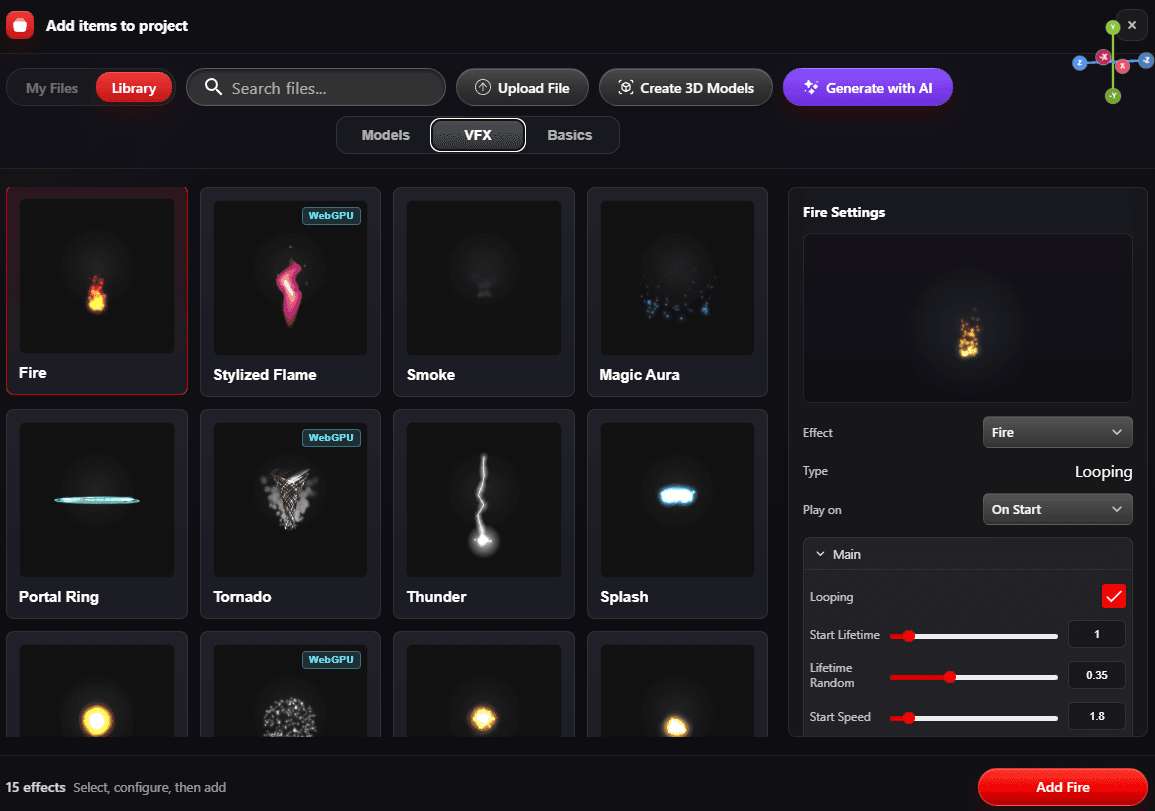
- Click New Item in the left Project Items panel.
- Open the Library tab.
- Switch the library filter from Models to VFX.
- Select an effect tile such as Fire, Smoke, Explosion, Portal Ring, or Muzzle Flash.
- Review and adjust the settings on the right side of the Add Items panel.
- Click the add button, for example Add Fire, to place it in the project.
Standalone Particle Effects And Attached VFX
- Standalone particle effect - The effect is added as its own project item. Use this for fires, portals, ambient smoke, magic zones, explosions placed in the scene, and other effects that have their own position.
- Attached VFX - The effect is stored on another item and follows it. Use this for weapon muzzle flashes, vehicle exhaust, boost flames, item auras, impact sparks, and effects that need to move with a model.
Attach Particle VFX To An Item
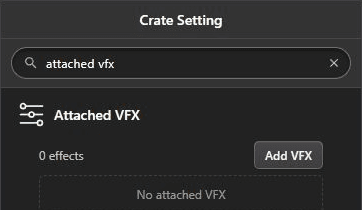
- Select the item that should own the effect.
- In the item settings panel, open Attached VFX.
- Click Add VFX.
- Choose the effect from the VFX picker and add it.
- If the item has multiple attached effects, use the attachment tabs to switch between them.
- Use Adjust Offset to place the effect on the correct part of the item.
Attached VFX settings include an Enabled toggle, a Trigger selector, offset adjustment, remove controls, and the same particle settings panel used by standalone effects.
Attached VFX Triggers
- Always - The attached effect plays whenever it is enabled.
- On Boost - Plays while a vehicle item is boosting. Use this for exhaust flames, speed trails, and boost glow.
- On Drift - Plays while a vehicle item is drifting. Use this for tire smoke, dust, and skid sparks.
Built-in VFX And Particle Presets
The library includes particle and shader-based presets. WebGPU shader effects can show a simpler fallback if WebGPU is not enabled in Project Settings.
- Environment and magic: Fire, Stylized Flame, Smoke, Magic Aura, Portal Ring, Tornado, Thunder, Splash, and Spray.
- Combat and impact: Explosion, Golden Sparks, Impact Sparks, Muzzle Flash, and Blood Splash.
- WebGPU shader effects: Stylized Flame, Tornado, and Fireworks.
Top Settings
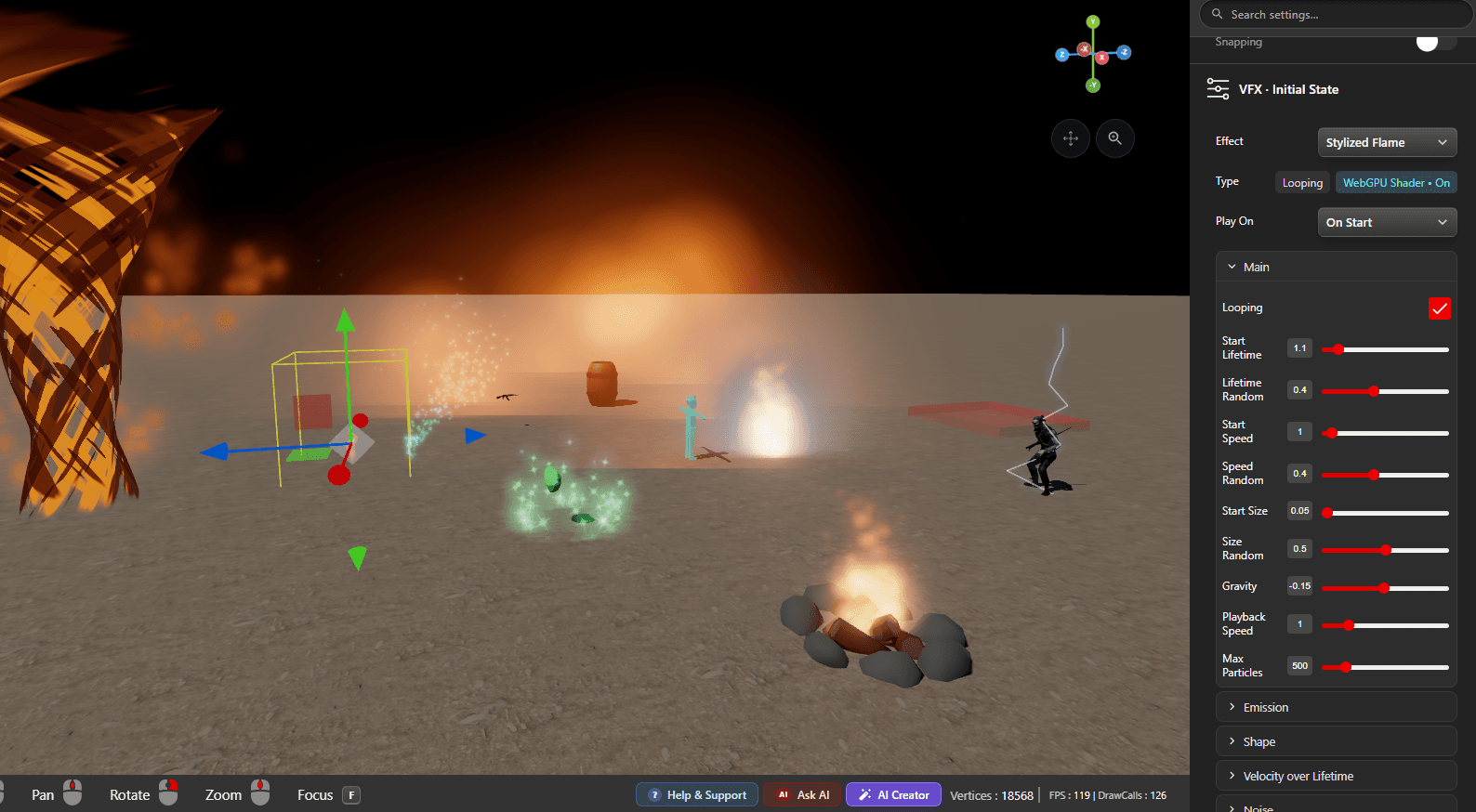
- Effect - Selects the preset used by this VFX.
- Type - Looping effects keep emitting until stopped. Burst effects emit a short one-time effect.
- Play on - Choose On Start for automatic playback or On Event for event-driven playback.
- Start on - Event that starts the effect when Play on is set to On Event.
- Stop on - Event that stops a looping event-driven effect.
Particle Setting Groups
- Main - Controls Looping, Start Lifetime, Lifetime Random, Start Speed, Speed Random, Start Size, Size Random, Gravity, Playback Speed, and Max Particles.
- Emission - Looping effects use Rate / Second. Burst effects use Burst Count and Spawn Window.
- Shape - Controls emitter shape: Cone, Sphere, Hemisphere, Circle, Box, or Point. Shape settings can include Cone Angle, Radius, and Emit from Shell.
- Velocity over Lifetime - Adds Linear X/Y/Z, Orbital Y, and Radial movement over each particle's lifetime.
- Noise - Adds motion variation with Strength and Frequency.
- Color over Lifetime - Blends from Start Color to End Color.
- Size over Lifetime - Sets Birth Scale and Death Scale.
- Rotation over Lifetime - Sets Spin in revolutions per second.
- Renderer - Selects Sprite, Blending, Opacity, Fade In, and Fade Out.
Renderer Options
- Sprite - Choose Soft Glow, Sharp Dot, Spark, Smoke Puff, Star Flare, or Ring.
- Blending - Additive Glow is bright and useful for fire, magic, sparks, and energy. Normal is better for smoke, dust, spray, and opaque particles.
- Opacity - Sets particle transparency.
- Fade In / Fade Out - Smooths how particles appear and disappear.
Event-driven Particle VFX
Use events when an effect should play only after a gameplay action. Set Play on to On Event, choose Start on, and for looping effects choose Stop on.
- Use burst effects for hits, pickups, explosions, muzzle flashes, spell casts, and impacts.
- Use looping effects for fire, smoke, aura, portal rings, weather, and vehicle exhaust.
- Attach VFX to items when the effect must follow a moving object.
- For vehicle-specific effects, use On Boost and On Drift triggers where available.