

CtrlK
Ground
Ground
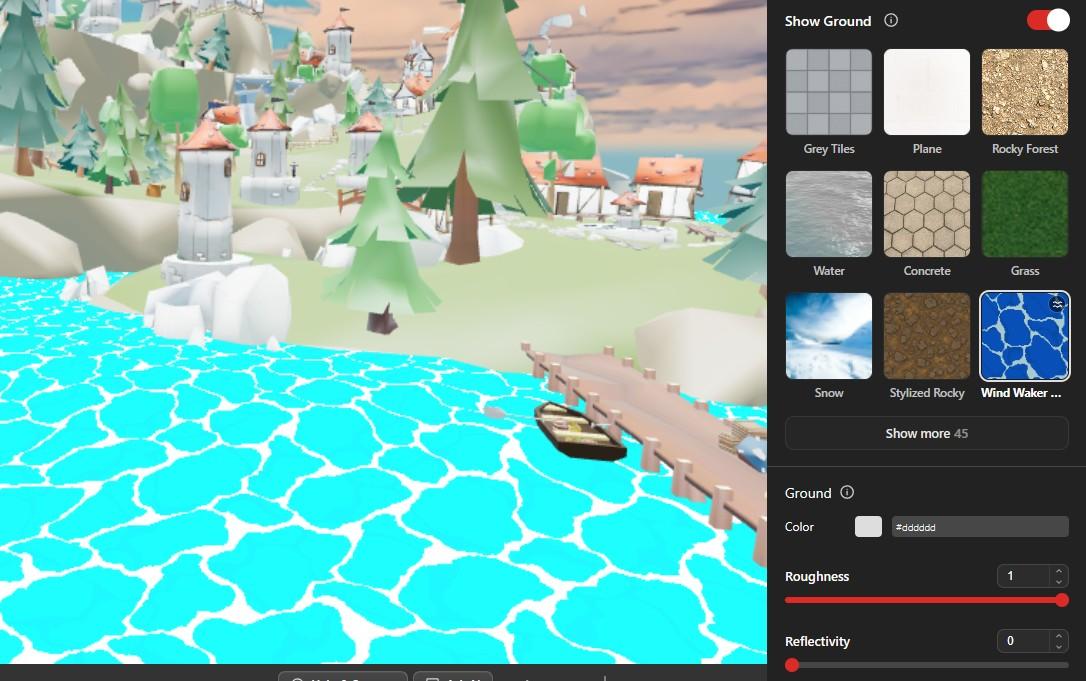
The Ground section controls the base surface of the project.
Ground Settings
- Show Ground - turn the ground surface on or off. Turn it off when your own terrain or floor objects replace it.
- Ground Material - the grid of materials. Click one to apply it. The first nine are shown here and Show more opens the full browser, with the total count beside it.
- Color - tint applied to the ground. Set it with the swatch or the hex field.
- Roughness - how matte the surface is. Lower values look polished, higher values look dull.
- Reflectivity - how much light the surface reflects.
- Project Size - the size of the ground area in meters.
Material Browser
Show more opens the Materials browser with every ground material available to the project: the built-in set plus any material published to the library.
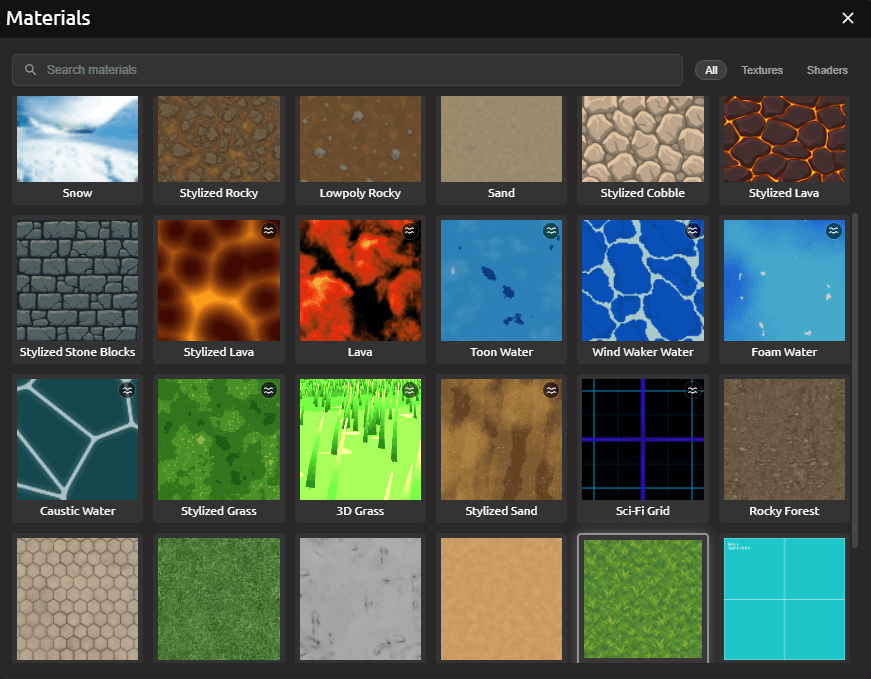
- Search materials - filter the grid by name.
- All - every material.
- Textures - image-based materials such as Snow, Sand, and Rocky Forest.
- Shaders - materials drawn by a shader, such as Toon Water, Lava, and 3D Grass. These can animate and react to light rather than sitting still like a texture.
A material picked in the browser is applied straight away and keeps its place in the grid on the Ground tab, so you can get back to it without reopening the browser.